
Guide
Search
Search your library, use advanced search (Pro), and save a search to the sidebar.
Tap the magnifying glass at the top of Library or Feeds.
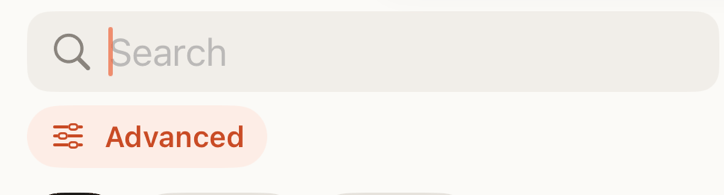
Search as you type
Start typing, and the list narrows to matching articles on your device straight away. That works with no connection.
To look through every word of every article, tap Search on the keyboard. Readstow asks the server, so it needs a connection. Your recent searches show under the field while it’s empty. Tap one to run it again.
You can use a few shortcuts in the search box. For example:
label:Researchfinds articles with that label.is:unread,is:pinnedandis:archivedfilter by state.has:highlightsandhas:notesfind articles you’ve marked up.title:,author:andsite:look in one place, such assite:example.com.in:inbox,in:archiveandin:followingchoose where to look.
Put them together, such as label:Research is:unread.
Advanced search (Pro)
Prefer a form? Tap Advanced under the search field. Fill in as little or as much as you like, then tap Search.
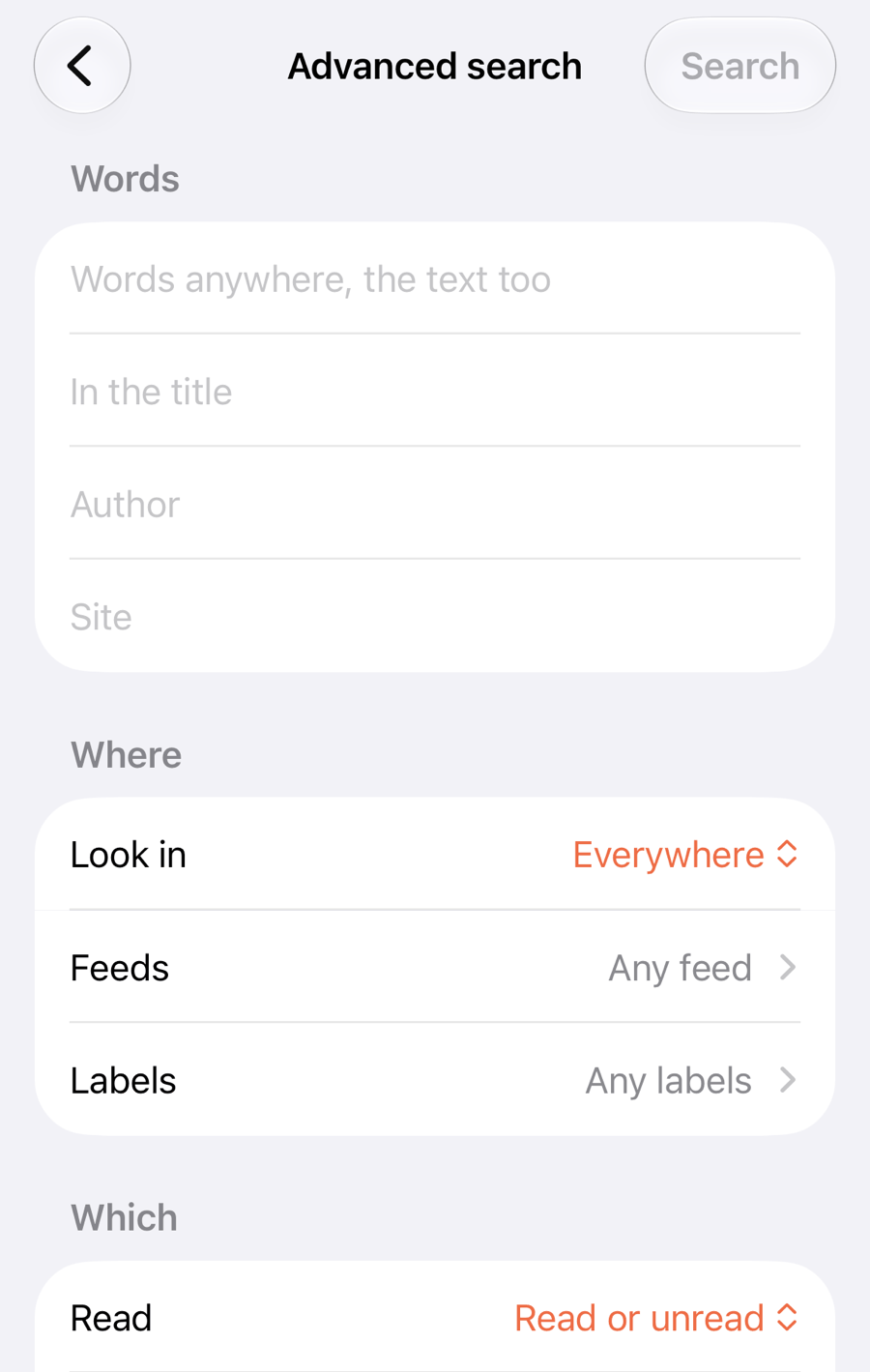
- Words can be anywhere in the article, only in the title, or from an author or a site.
- Look in can be Everywhere, Library, Feeds or Archived.
- Feeds and Labels narrow it to the ones you pick.
- Read, Has highlights and Has notes narrow it by state.
- Saved picks a time: today, this week, this month, this year, or between two dates.
On the Free plan, Advanced is part of Pro. The search box and its shortcuts work on every plan.
Save a search
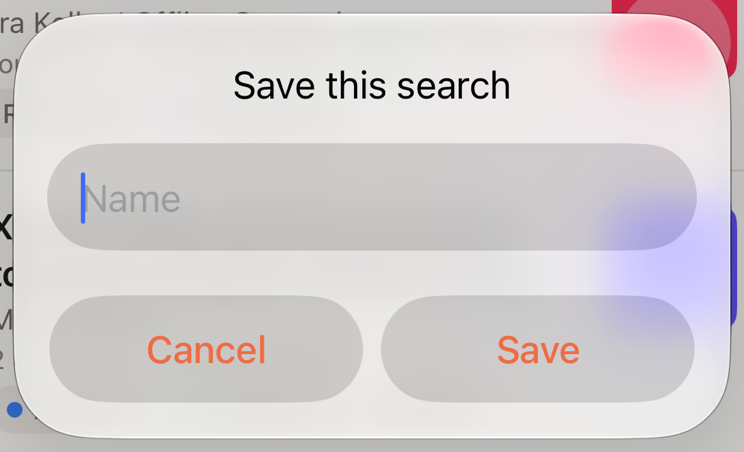
When a search gives you a list you’ll want again, tap the bookmark button at the top right of the results. Give it a name and tap Save. It then appears under Saved searches in the sidebar.
Press and hold a saved search in the sidebar to Rename…, Edit search… or Delete it.