
Guide
Offline reading and storage
How Readstow downloads your library, what it uses on mobile data, and how to keep an eye on storage.
Everything you save downloads to your device in full, text and pictures, on every plan. Once an item has downloaded, it opens with no connection. The Downloaded view in the sidebar lists everything that’s on your device now.
Changes you make offline, such as archiving or deleting, wait on your device and are sent when you’re next connected. Under Sync on Profile you’ll see the status and when it last synced. Pull down on Profile to sync straight away.
If an item hasn’t finished downloading, open it while you’re online and Readstow fetches it.
Mobile data and storage
Go to Settings → Mobile data and storage.
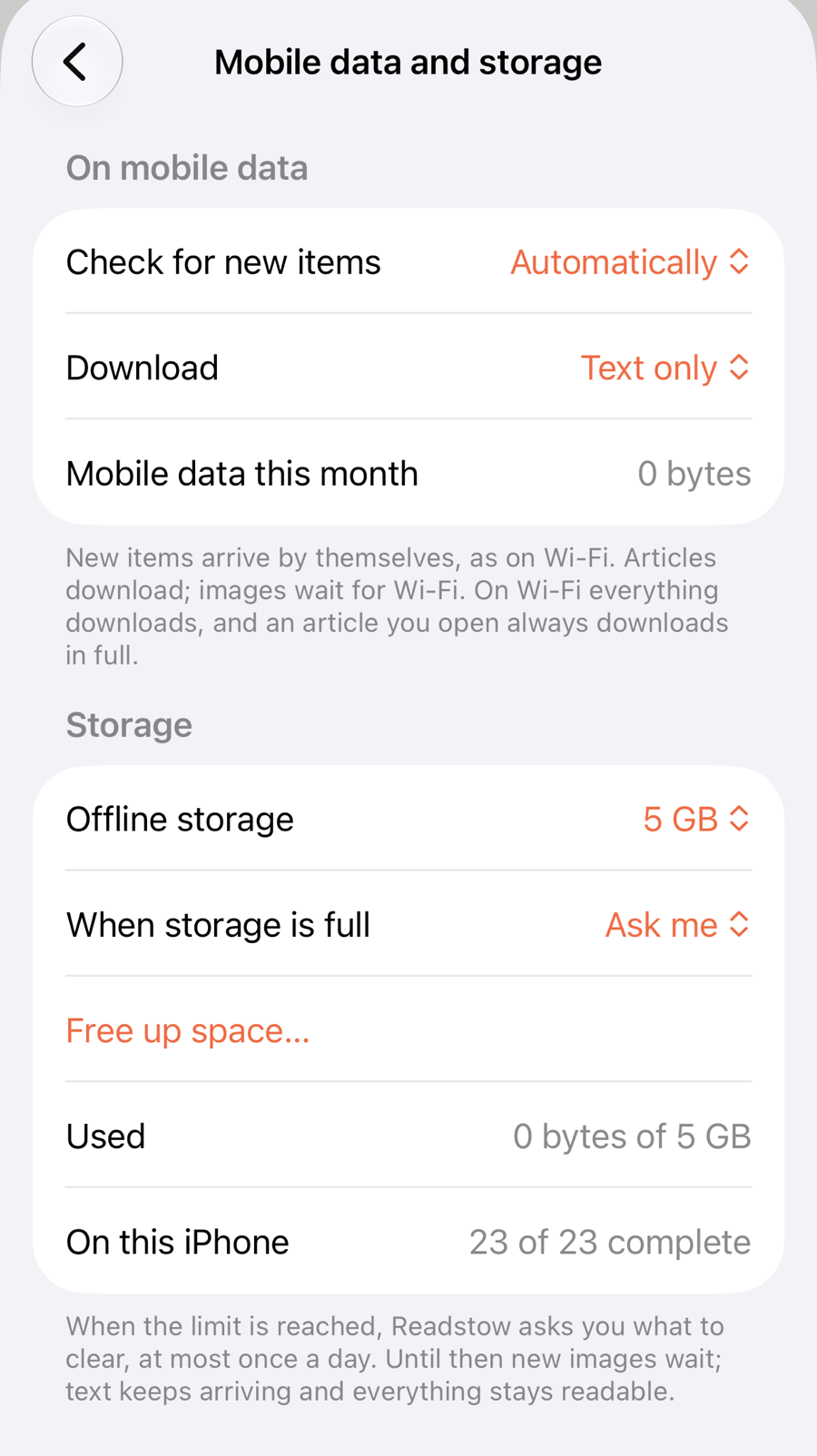
On mobile data
- Check for new items. Automatically, or Only when I pull to refresh. Your own changes are always sent.
- Download. Text only keeps images for Wi-Fi. Text and images downloads both.
- Mobile data this month shows what Readstow has used.
An article you open always downloads in full, and on Wi-Fi everything does.
Storage
- Offline storage sets how much room Readstow may use: 500 MB, 1 GB, 2 GB, 5 GB (the usual), 10 GB, or no limit.
- When storage is full, nothing is removed by itself: new images wait and text keeps arriving.
- Free up space… shows what each choice would do before you confirm: Remove images of oldest items (the text stays readable), Remove oldest items (they leave this device, stay in your library, and download again when you open them), or Raise the limit. Only items you have read, archived or deleted are ever removed; unread and pinned items are left alone.
- Auto-archive / delete (Pro) moves old articles to the Archive or Deleted on a schedule you set.
- Used and On this iPhone show how much is stored.
Signing out
Signing out removes your downloads from that device. Your library stays in your account and comes back when you sign in again.