
Guide
Reading
The reader’s menu and display settings, finding words, highlights and notes, links in an article, and making a book of your articles.
Tap an article to open it. Readstow remembers where you stopped and takes you back there next time. The bars at the top and bottom fade away as you scroll, so the page has the screen to itself.
Along the top, the three buttons are Archive, Open original (the compass, which opens the page on the web) and the ☰ menu. For an X post, the compass says Open original in X.
The reader’s menu
Tap ☰ in the reader.
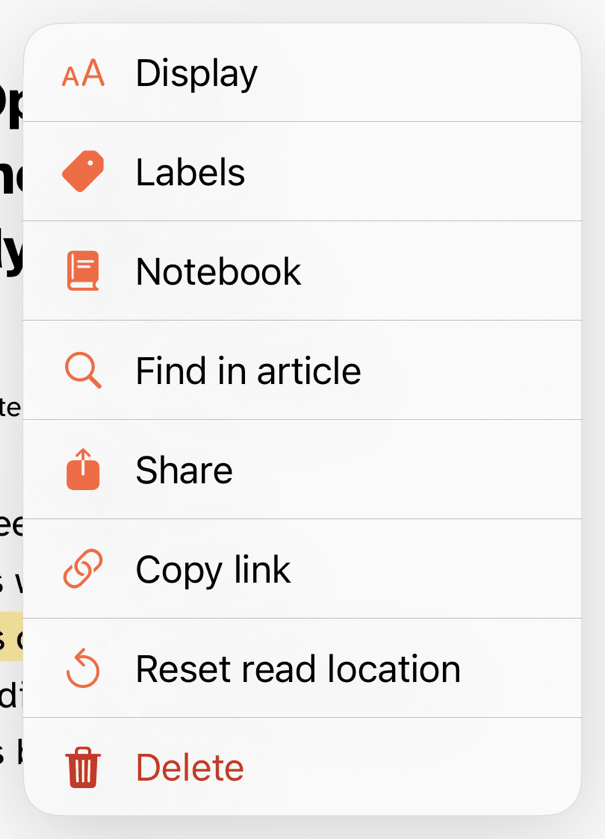
- Display changes how the page looks. See below.
- Labels opens your labels for this article.
- Notes has your note on the article and all its highlights.
- Find in article searches the page.
- Share and Copy link use the article’s web address.
- Keep in Library appears on items from Feeds.
- Reset read location takes the article back to the top.
- Delete moves it to Deleted.
Make it easy to read
Display is also in Settings → Display, so you can set it up without opening an article. Changes show at once and stay on your device.
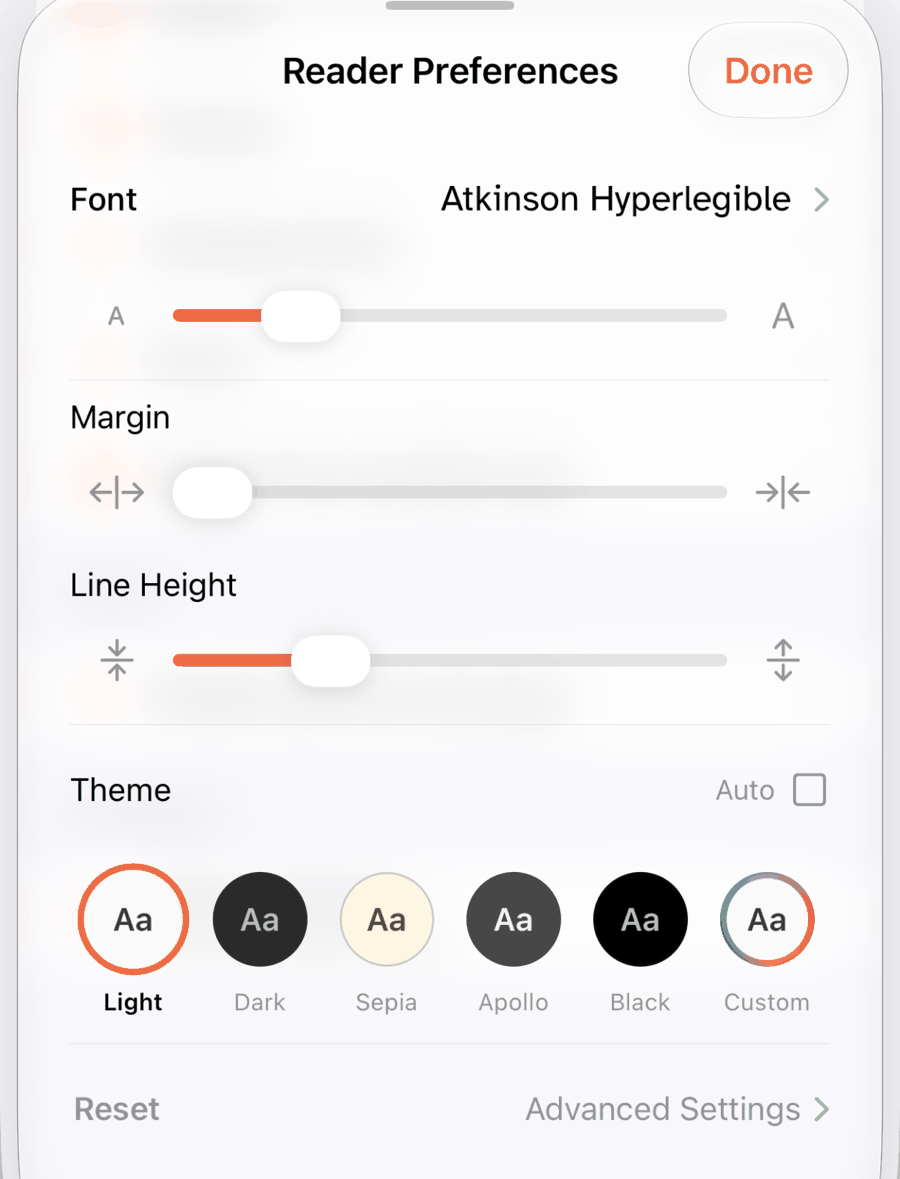
- Font. Tap to see the list.
- The first slider changes the text size.
- Margin. Slide right for wider margins.
- Line Height. Space between lines.
- Theme. Light, Dark, Sepia, Apollo, Black, or Custom, where you pick your own background and text colour. Tick Auto to follow your device’s light and dark appearance.
- Reset puts everything back as it was.
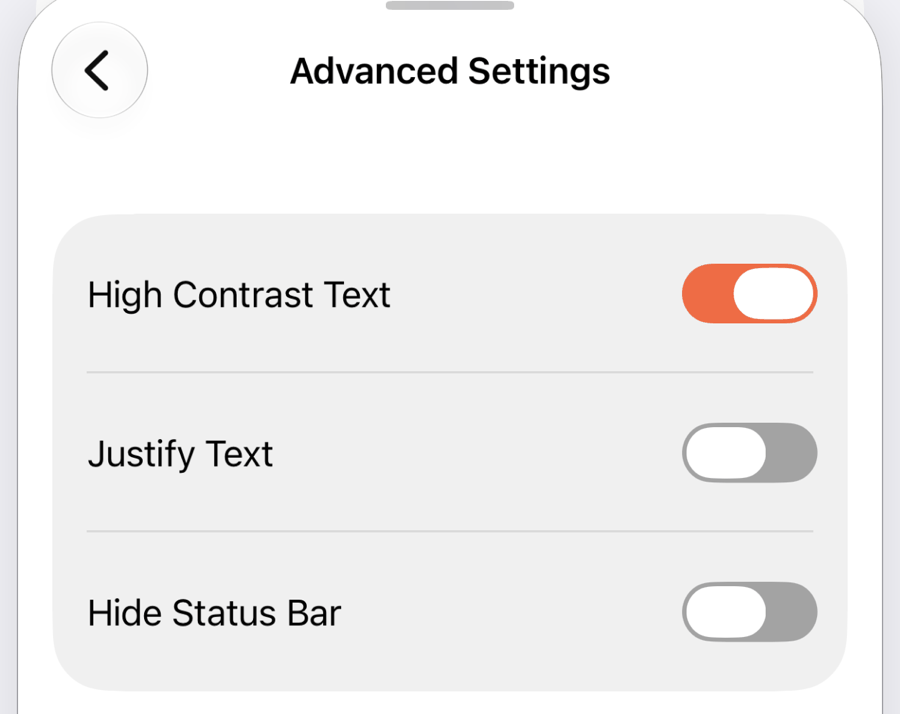
Advanced Settings has three more switches.
Find a word
Tap ☰, then Find in article. Type what you’re looking for. Readstow counts the matches and shows them on the page. Use the arrows to move between them, and tap Done to close.

Highlights and notes
Press and hold a word, then drag to select. In the menu that appears, tap Highlight, or Note to highlight and write something at the same time.

Tap a highlight you’ve made for more: Note, Labels, Copy or Remove. A small dot beside a highlight means it has a note.
Notes
Tap ☰, then Notes to see everything you’ve captured in one article.
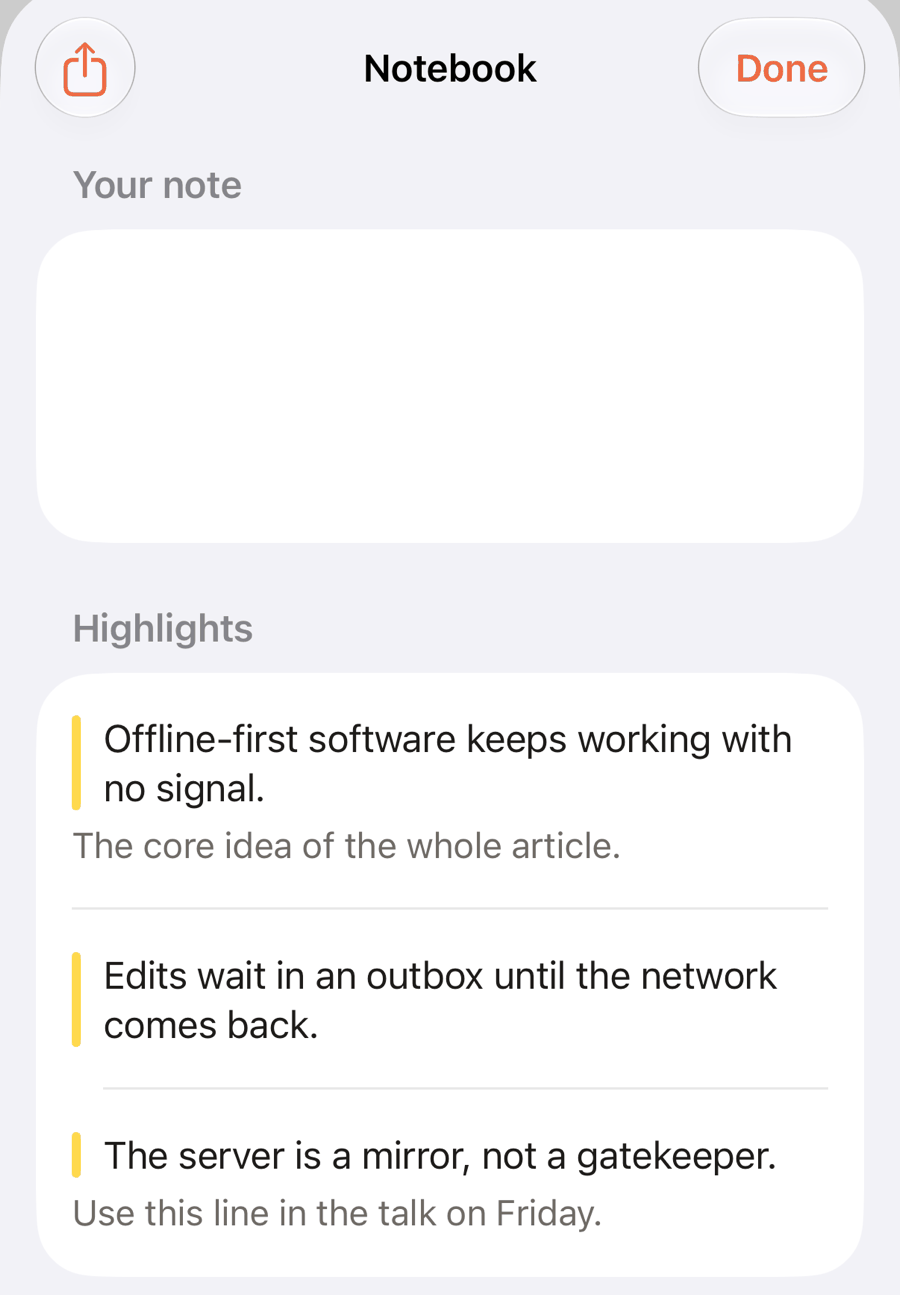
- Your note is for the whole article. It saves as you type.
- Tap a highlight to jump to it in the article.
- Swipe a highlight to Remove it, or press and hold for Note, Copy and Remove.
- The share button at the top left exports the highlights as Markdown.
All your notes
Open the sidebar and tap Notes (or tap ☰, then Notes). Every note you’ve written is in one list, each with the passage it belongs to and its article. Tap one to open the article at that note.
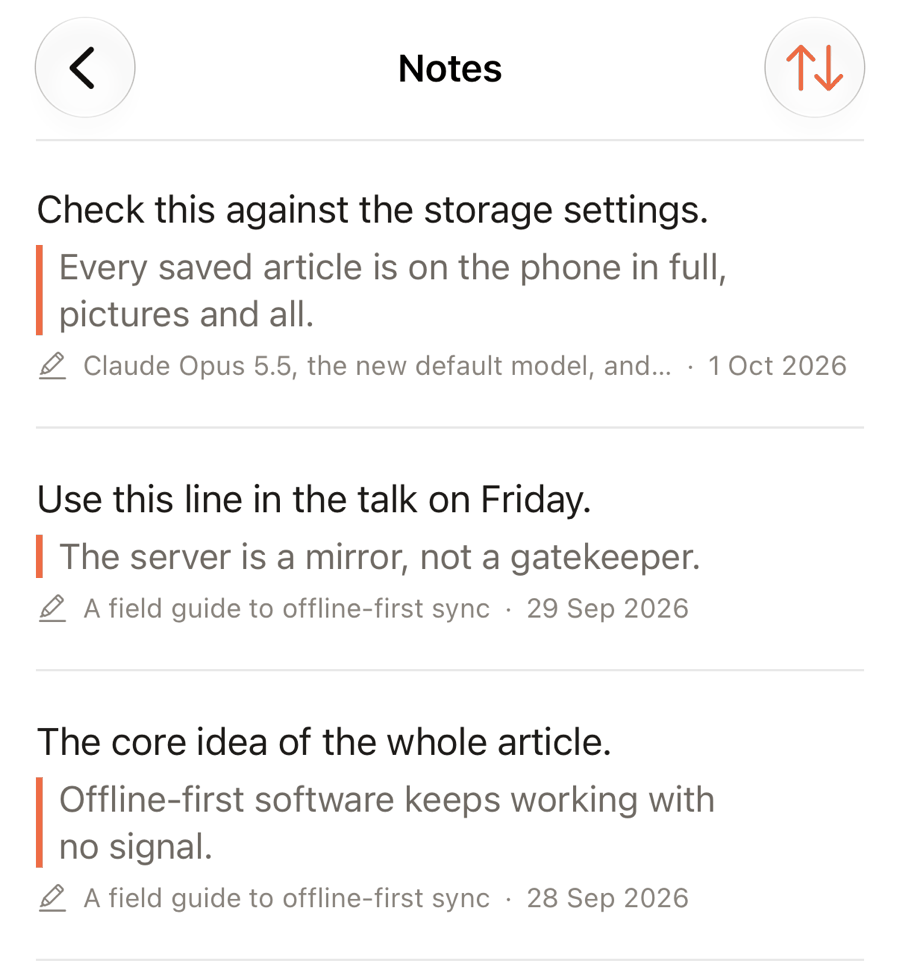
The sort button narrows the list down.
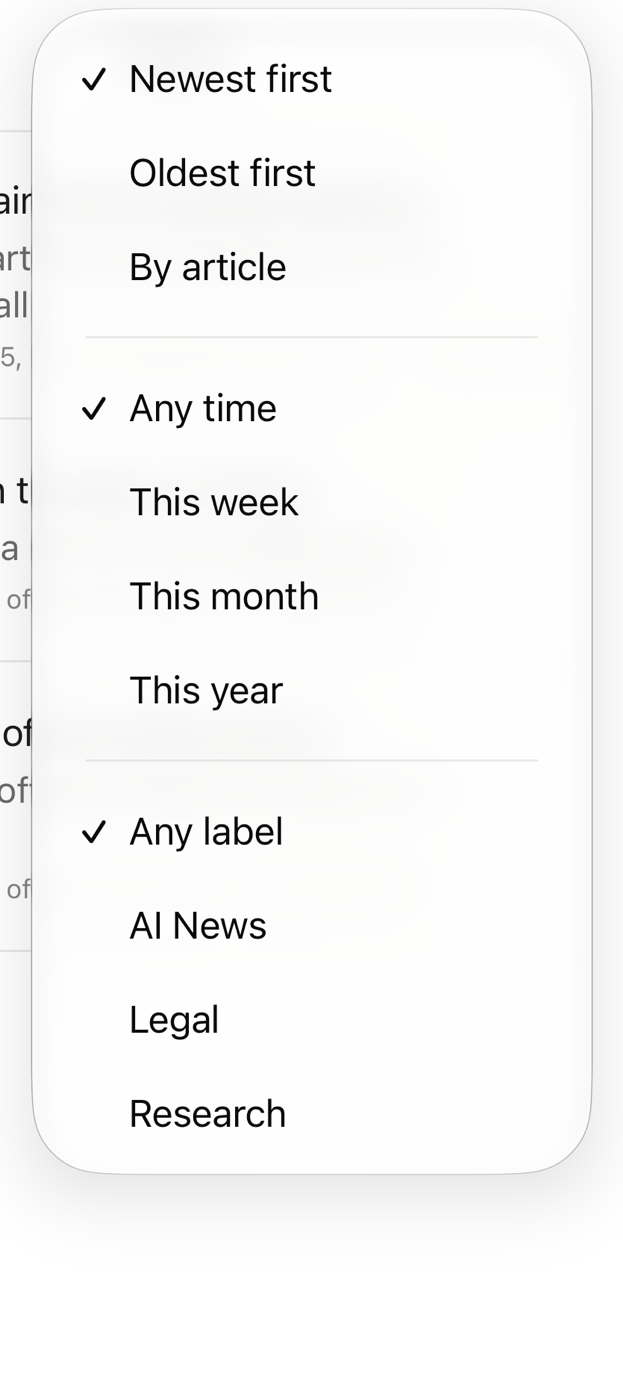
- Newest first, Oldest first or By article.
- Any time, This week, This month or This year.
- Any label or one of your labels, using the label on the article.
The search box at the top looks through your notes, the passages and the article titles.
Links in an article
A plain tap on a link opens the page in a browser inside Readstow, so you can come straight back.
Press and hold a link for more choices.
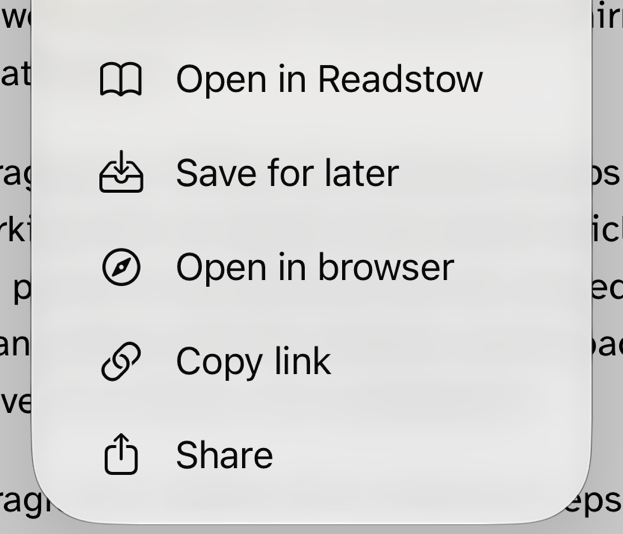
- Open in Readstow saves the page and opens it as an article. Back takes you to where you were.
- Save for later saves it quietly, to read another time.
- Open in browser opens it in your usual browser.
- Copy link and Share do what they say.
Sites you pay for (Pro)
If you pay for a site with a paywall, Readstow can show you its articles in full. It uses your own subscription: it doesn’t get around paywalls.
- Open an article from a site you pay for. Readstow asks Connect your subscription?
- Tap Connect. The site’s own sign-in page opens inside Readstow. Sign in as you normally would.
- The page closes by itself and you’re back on the article, in full.
Tap Not now if you’d rather not. You’ll still see a line at the bottom of the article to sign in later.
To see, add or remove sites, go to Settings → Your Paid Sites. Add a site lists popular ones, or you can type any address. Swipe a site left, or press and hold it, to Remove it or Sign in again.
- After a sync, Readstow reads new articles from your sites in full in the background. You don’t need to open each one. They are kept on your device, so you can read them offline.
- The article is saved to your library like any other, so it syncs to your devices and you can highlight, add notes and search it. Your sign-in stays on your device.
- Each device signs in for itself. Connect again on each other device.
- Signing out of Readstow removes the connections from the device.
- If a site ends your session, Readstow asks you to sign in again. If your sign-in doesn’t hold, the article says Sign in to read the full article.
- For Medium, sign in with email and password, or with Apple. Google sign-in doesn’t work inside apps.
On the Free plan you see the preview, with a way to Pro.
Send to a Kindle or save as a book
With Pro, you can turn one article, or several, into a book. Press and hold an article in a list and tap Book…. To use several, tap ☰, then Select, pick them, and tap Book in the bar at the bottom. A book holds up to 200 articles.
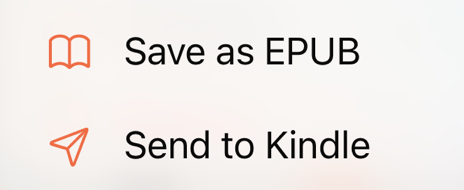
- Save as EPUB makes the book and opens the share menu, so you can save it to your files or open it in a reading app.
- Send to Kindle emails the book to your Kindle. It arrives in a few minutes. You can send up to 25 books a day.
Before the first send, set it up once. Settings → Send to Kindle takes you through three steps.
- Kindle address. Type your Kindle’s email address. It ends in
@kindle.com. Tap the ⓘ to see where to find it, then Save. - Allow Readstow. In your Amazon account, under Manage Your Content and Devices, then Preferences, then Personal Document Settings, add
no-reply@readstow.comto the approved senders. Copy puts the address on your clipboard, and Open Amazon settings takes you there. - Send a test. Readstow sends a short book to your Kindle. Check your Kindle library and answer Yes or No when asked whether it arrived. Anything other than Yes shows what to check.
Every book you make has a cover with its title.
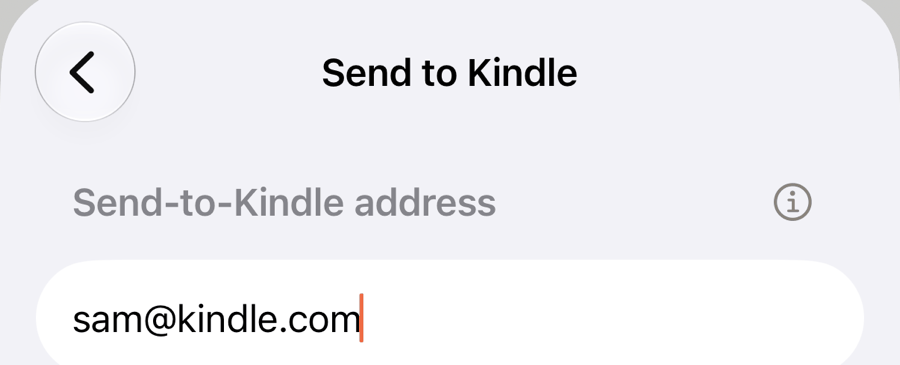
On the Free plan these screens say "Part of Pro".
X posts
X posts show as cards, with their pictures and any quoted post. The press-and-hold menu on a post says Open original in X.