
Guide
Labels, folders, rules and Auto-archive / delete
Tidy your library with labels and folders, let rules label new items for you, and clear out old articles automatically.
Four tools, four jobs.
- Labels say what an article is about.
- Folders group your feeds, and your saved articles, in the sidebar.
- Rules apply labels, and more, for you.
- Auto-archive / delete moves old articles out of the way.
Labels
Labels work on every plan.
- To label one article, press and hold it and tap Labels…, or tap ☰ then Labels in the reader. Tick the labels that fit. You can make a new one from the same screen.
- To manage them all, go to Settings → Labels, or tap ☰ then Labels.
- To see only one label’s articles, open the sidebar and tap a label under Labels. Tap another to add it. A chip under the title counts how many labels are filtering, and tapping it clears them.
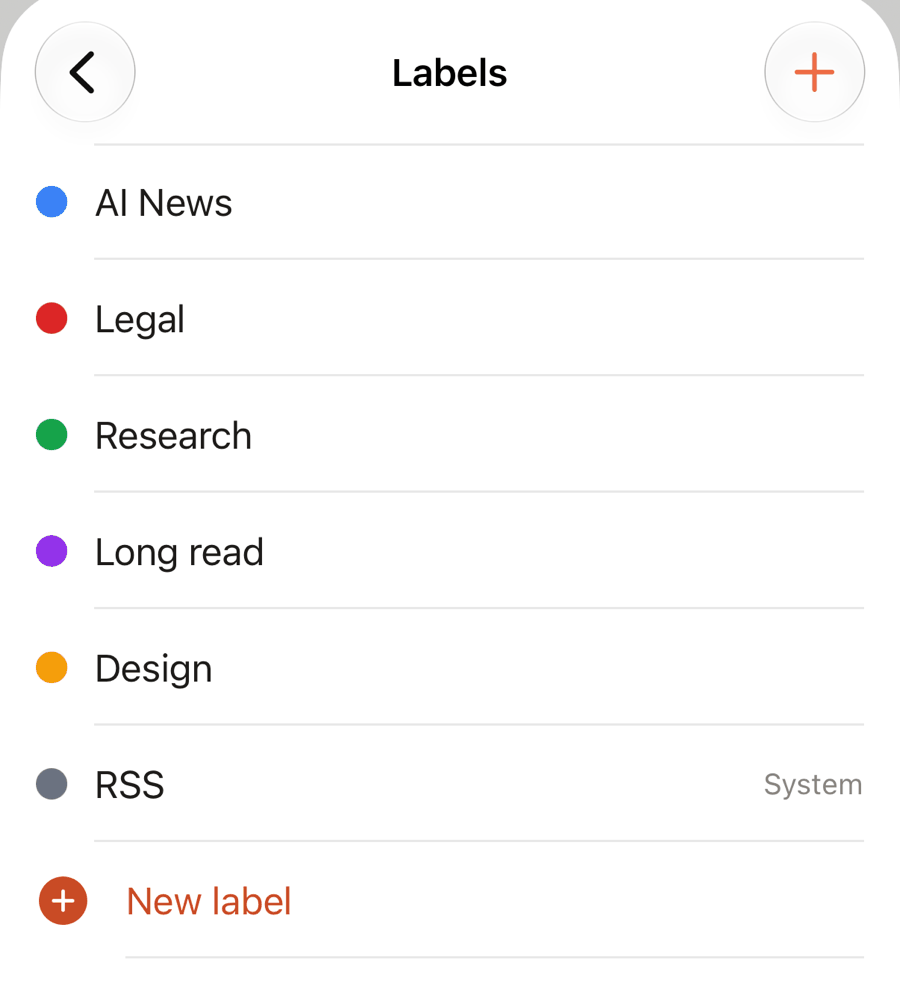
Tap a label to rename it, change its colour, or delete it.
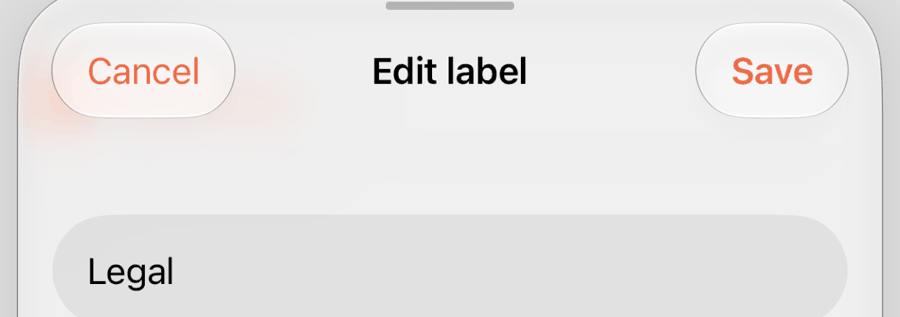
Deleting a label takes it off your articles. It doesn’t delete the articles.
Folders
Folders group your feeds and newsletters under Feeds in the sidebar, and your saved articles under Library. A folder can hold other folders. See Feeds for how to make and move them.
To put a saved article in a folder, press and hold it in your Library, tap Folder… and choose one, or New folder…. No folder takes it out again. Articles in Feeds are organised by their feed.
Rules (Pro)
A rule does something to every new item that matches. Rules run on the server as items arrive, even while your phone is off.
Go to Settings → Rules to see them all.
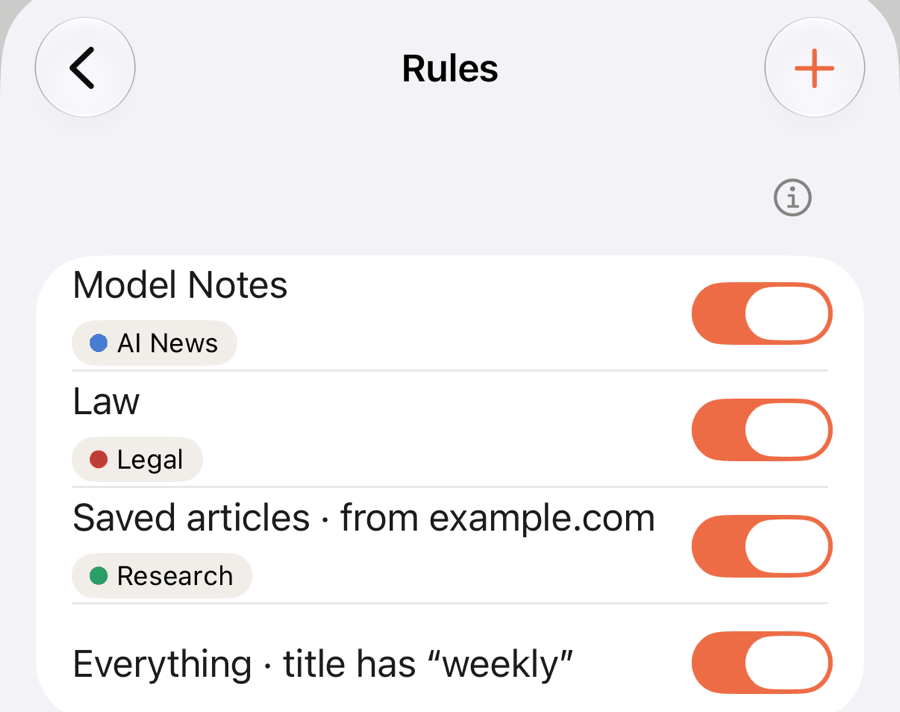
Each row names what the rule watches. Use the switch to turn a rule on or off. Swipe a row to delete it. Tap + for a new rule.
Make a rule
A rule has a source, optional conditions, and actions.
Choose what it watches. Tap + and pick one.
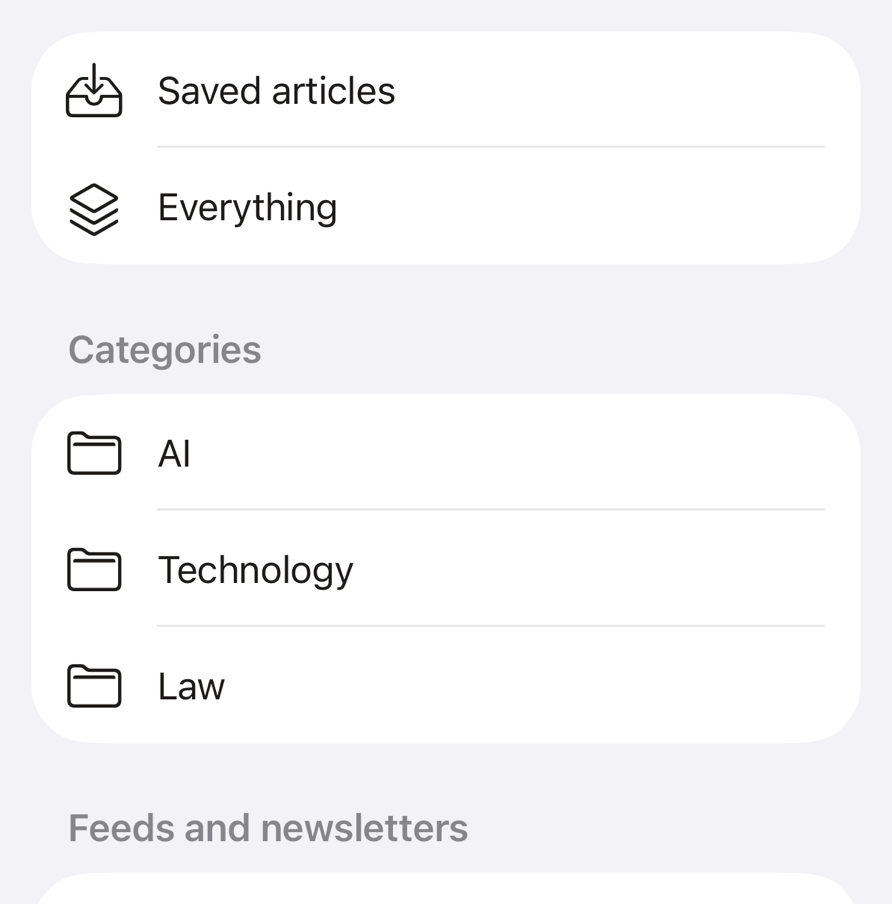
- Saved articles, the things you save yourself.
- Everything, every new item from anywhere.
- A folder of feeds, with the folders inside it.
- A feed or a newsletter.
You can also press and hold a feed or folder in the sidebar and tap Auto-label…, or open a feed’s settings and tap Rules: labels for new items….
Set the conditions and actions. The rule sheet has everything on one page.
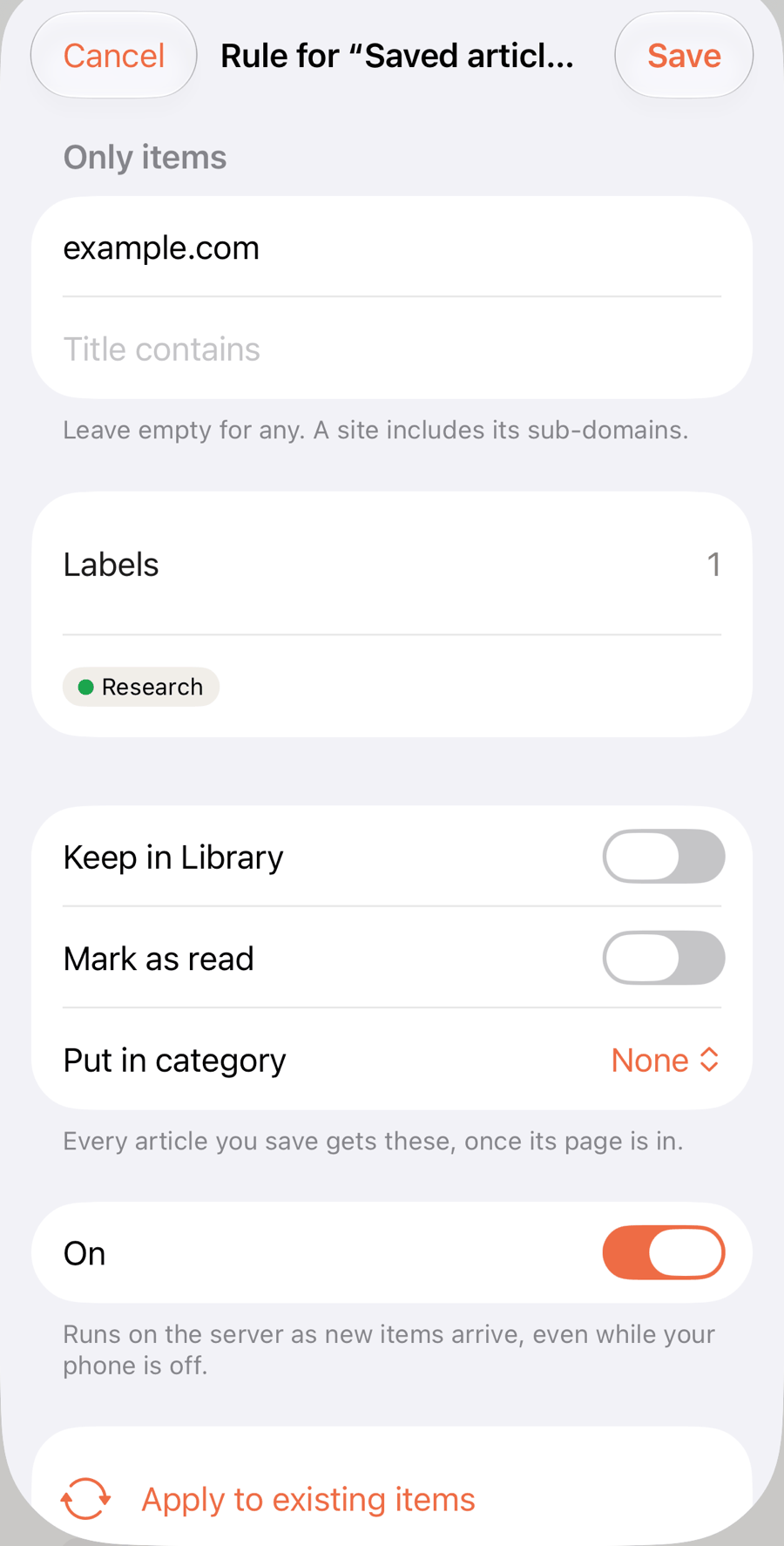
- From site or sender. Only act on items from this site (its sub-domains too) or this sender’s address. Leave it empty for any.
- Title contains. Only act on items with these words in the title.
- Labels. Labels to add.
- Keep in Library. Move matching items from Feeds to your Library.
- Mark as read.
- Put in folder. Put matching items in a Library folder.
- On. Turn the rule off without deleting it.
A rule has to do something, so choose at least one action. Tap Save.
Apply to existing items
A rule only touches new items. To run it over what you already have, open the rule and tap Apply to existing items. Readstow tells you how many items it changed.
If your plan changes to Free, your rules pause and say "Paused: needs Pro". Your articles and labels are untouched.
Auto-archive / delete (Pro)
Auto-archive / delete moves old articles out of the way for you. It starts off. Readstow does the moving on its servers, so it works while your phone is off.
Go to Settings → Auto-archive / delete. It needs a connection.
Choose a rule
A rule has three parts.
- Action. Off, Auto-archive or Auto-delete. Auto-archive moves an article to Archived. Auto-delete moves it to Deleted, where you can recover it for 30 days.
- After. How long after the article arrived: 7 days, 30 days, or Custom, from 1 to 365 days.
- Which articles. Tick any of Unread, Partially read and Fully read, or tick All at the top for all three. Unread means you haven’t opened it. Partially read means you’ve started reading or listening. Fully read means it’s marked read. Nothing is ticked to begin with, so a new rule moves nothing until you choose.
Your ticks are a draft. Nothing is applied while you tick, and no pop-up appears. When your ticks differ from what is saved, a Run now button shows under the list. Tap it to apply them. Readstow first asks you to confirm and says how many articles it will archive or delete. Cancel keeps your ticks as they were, still unsaved. Choosing Off for the action is different: it saves at once.
Where a rule applies
There are two rules, and each feed can have its own.
- Feeds is the rule for everything that arrives in Feeds.
- Library is a separate rule for your Library. It starts off, so your Library is left alone until you set one here.
- Per-feed overrides lists every feed, X account and newsletter. A feed shows My default, which follows the Feeds rule, or its own rule. Tap a feed and turn off Use my default to give it its own rule. Its action can be Off, to leave that feed alone. A feed that arrives in your Library follows the Library rule unless it has its own.
If you use Keep in Library on an article from Feeds, it follows the Library rule from then on.
What it leaves alone
Auto-archive / delete skips pinned articles and articles with a highlight or a note. It also skips an article you brought back yourself, by unarchiving it or recovering it from Deleted, until you save it again.
The clock
When a rule is going to move an article, a small timer shows on its line in the list with the time left, such as 3d or 5h. It’s grey for Auto-archive and red for Auto-delete. In the reader it sits under the title.
Tap the clock in the reader to see how long is left and which rule it comes from. The two buttons are Keep in Library, for articles from Feeds, and Change rule. In a list, press and hold an article and tap the line that reads, for example, Auto-delete in 3 days… for the same choices.
The time counts from when the article arrived in Readstow, not from when you read it. If you save an article again, its clock starts again. An article shows a clock only while the rule applies to it as it is now. With only Fully read ticked, an unread article has none until you’ve read it.
Before it moves anything
If a new rule would move articles straight away, because some are already older than the time you chose, Readstow asks first. The question reads, for example, "Delete 1,240 articles now?" It says which rule, how many articles and where they go: Archived or Deleted. Tap Delete 1,240 (or Archive 1,240) to go ahead. Tap Cancel and the setting stays as it was.
The count stops at "more than 10,000". A large clear-out is done in stages, so it can take a few hours to finish.