
Guide
Your Library
The Library’s views, chips, sidebar counts, sorting, Jump to a date, the press-and-hold menu, swipes, and picking several articles at once.
The Library holds what you’ve saved and what you’ve chosen to keep. It’s the place for things you mean to read.
The views
Tap the R at the top left to open the sidebar. The first section lists your Library views.
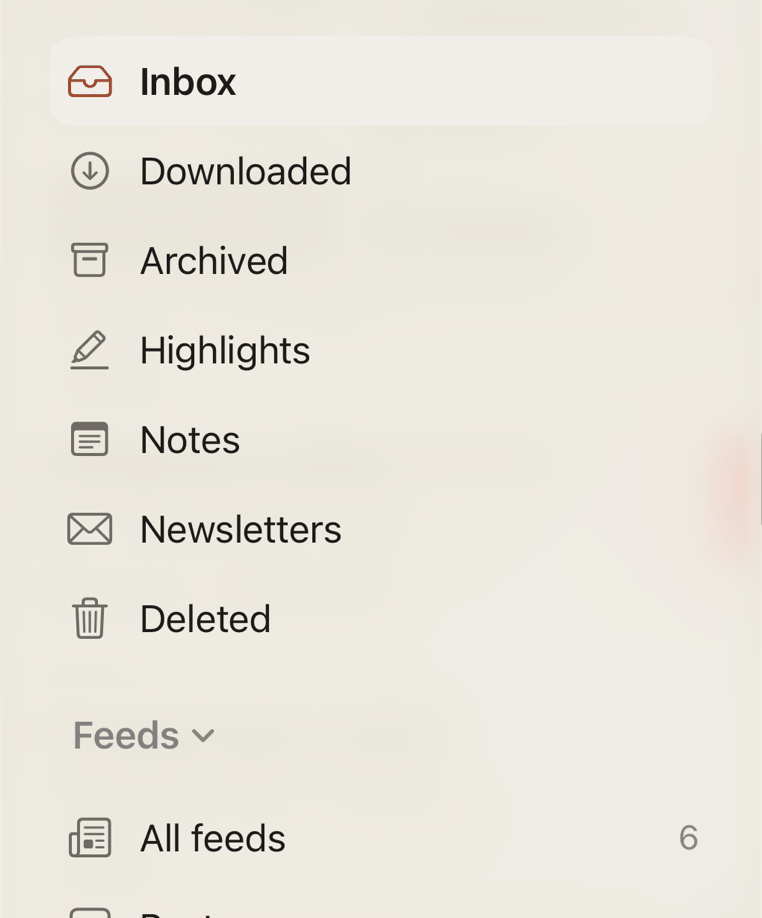
- Inbox is what you’ve saved and not archived yet.
- Downloaded is everything stored on this device, ready to read offline.
- Archived is what you’ve finished with but want to keep.
- Highlights is every article that has a highlight or a note.
- Notes lists every note you’ve written. See Reading.
- Newsletters is the issues that arrived by email.
- Deleted is what you’ve removed. Items stay here for 30 days. Swipe right on one, or press and hold, to Recover it. Delete now clears it for good.
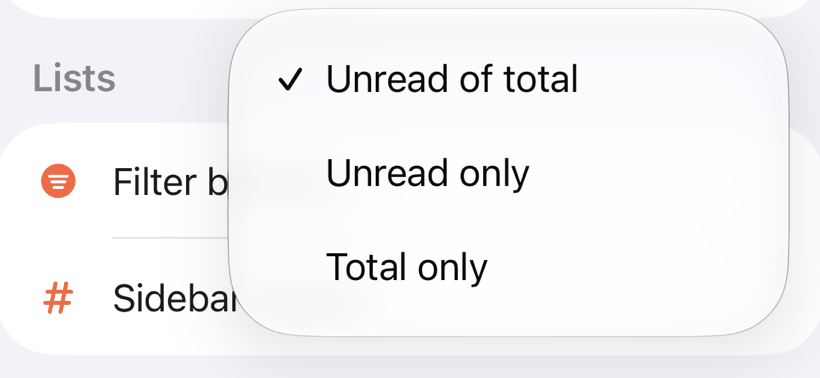
A number beside each view counts what’s in it. By default an Inbox shows "unread/total", for example 2/40. To change that, go to Settings → Lists → Sidebar counts and choose Unread of total, Unread only or Total only.
Chips
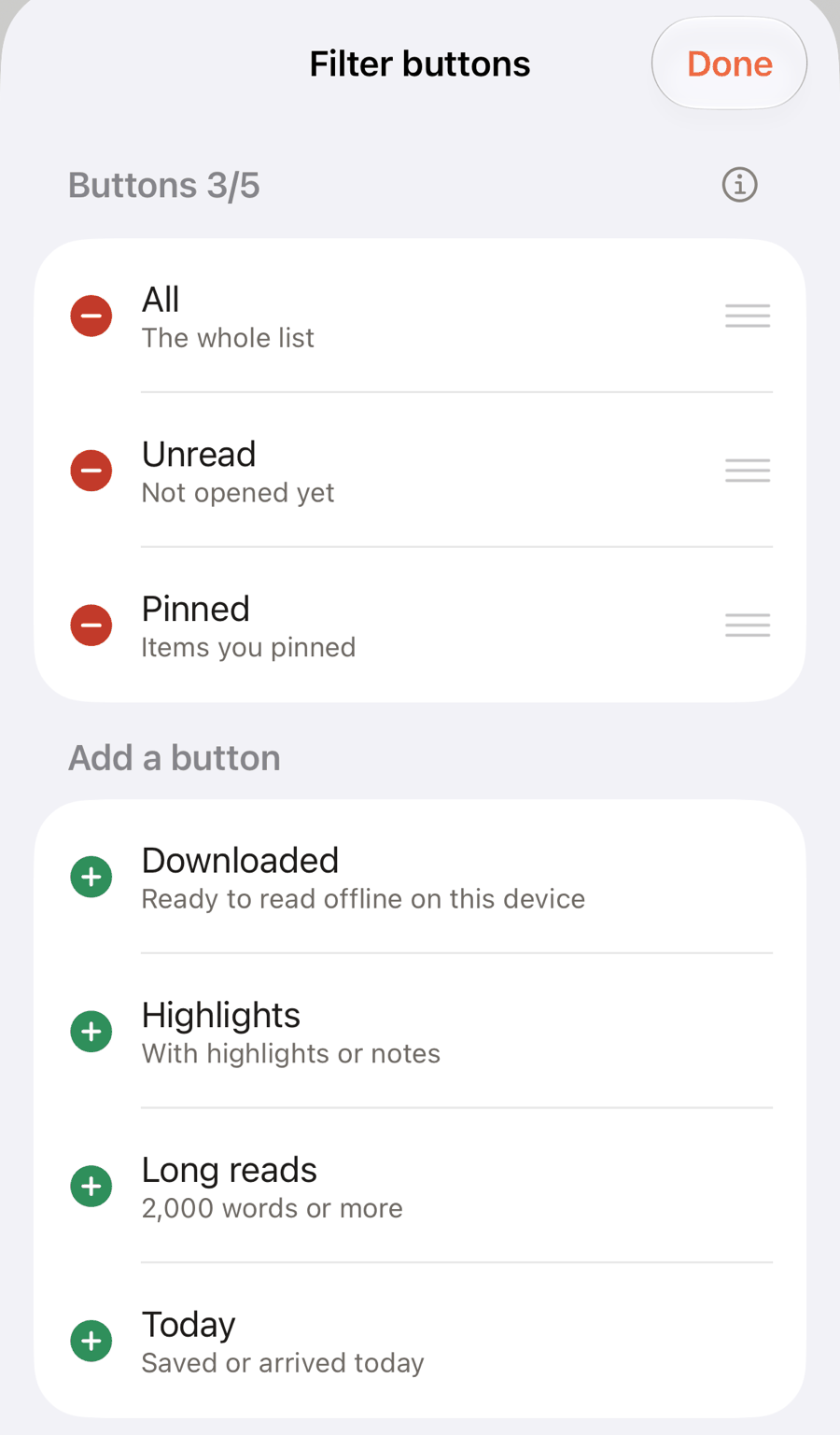
Under the title there’s a row of chips. They narrow the list you’re in, in Library and Feeds alike. You start with three. All shows everything in the view. Unread shows what you haven’t started: articles you haven’t marked read and haven’t read any real part of. Pinned shows the articles you’ve pinned. Tap a chip again to see the whole list.
The chips are yours to choose. Press and hold any chip, or go to Settings → Lists → Filter buttons. You can have up to five, All included. Add Downloaded, Highlights, Long reads, Today, one of your labels or a saved search, drag to reorder, and tap the red minus to remove one.
Sort, and jump to a date
Tap the sort button (the up and down arrows) to choose an order.
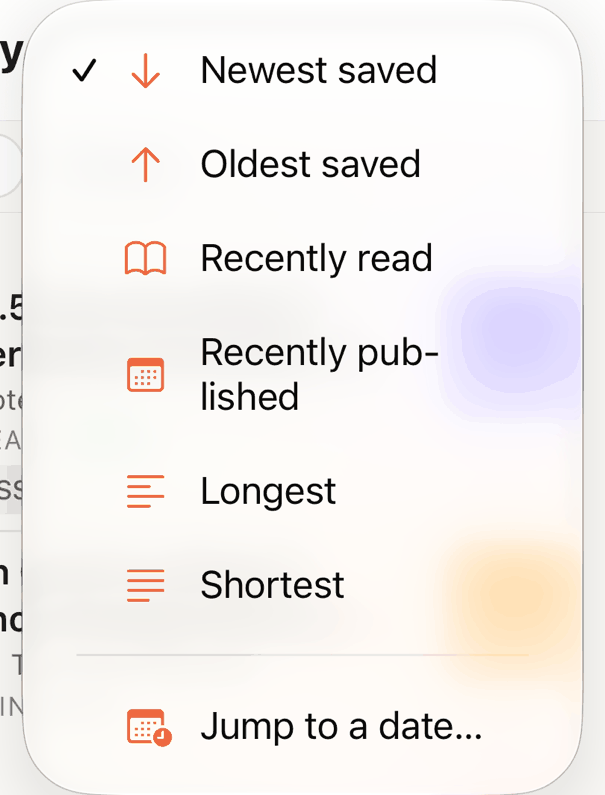
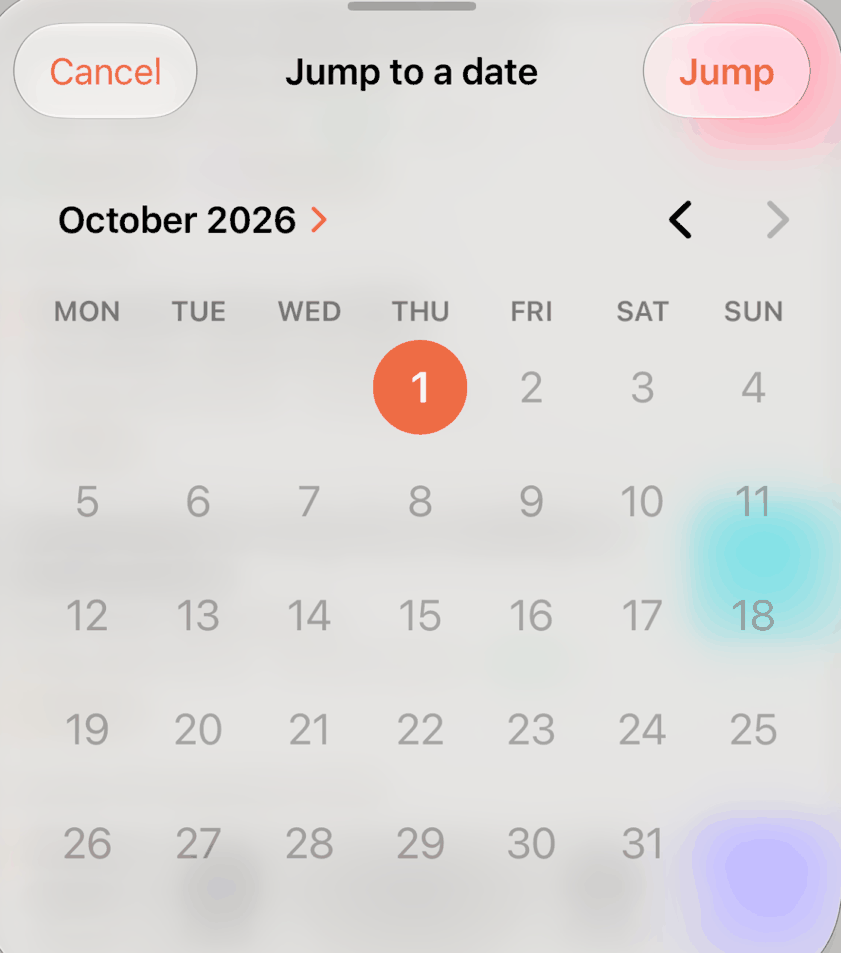
When the list is in date order (Newest saved, Oldest saved or Recently published), the menu ends with Jump to a date…. Pick a day on the calendar and tap Jump. The list scrolls to where that day starts. If nothing was saved that day, it lands on the nearest day.
Press and hold an article
Press and hold any article, in the Library or in Feeds, for its full menu.
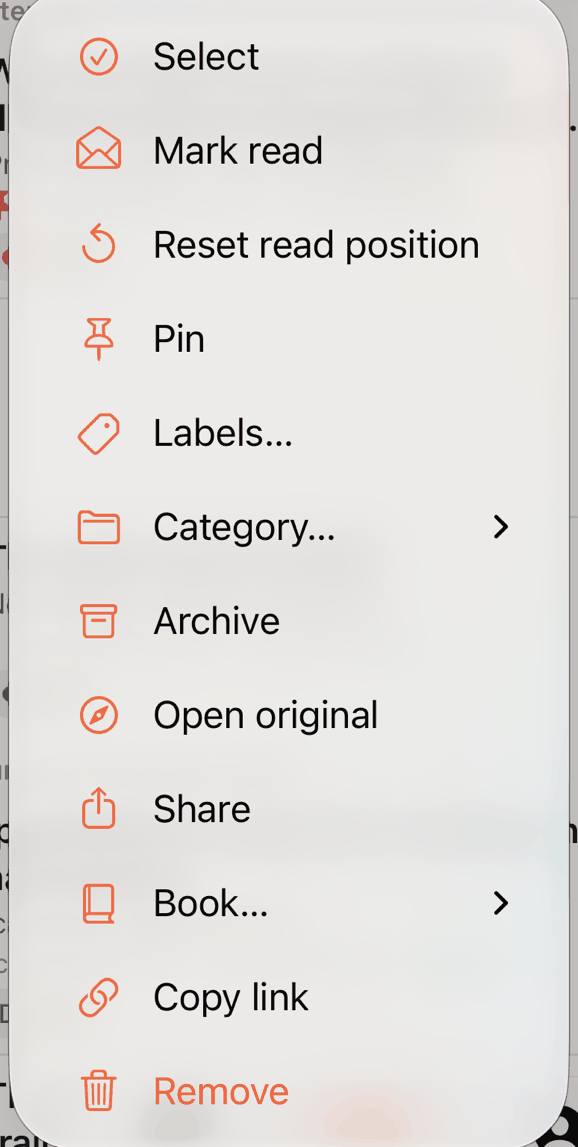
- Select starts picking several articles. See below.
- Mark read or Mark unread. If you’ve read part of an article, Reset read position takes it back to the top.
- Pin or Unpin.
- Keep in Library appears on items from Feeds. It moves the item to your Library so it stays.
- Labels… opens your labels so you can tick the ones that fit.
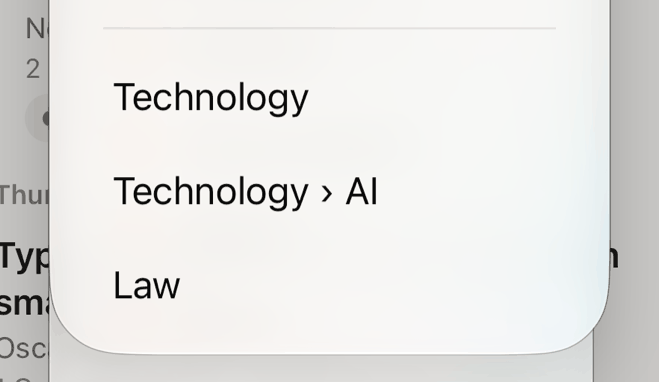
- Folder… puts an article from your Library in one of your folders. Pick New folder… to make one on the spot, or No folder to take it out.
- Archive or Unarchive.
- Open original opens the page on the web. Share and Copy link do what they say.
- Book… makes an EPUB of the article, or sends it to your Kindle (Pro). See Reading.
- Remove moves it to Deleted.
Swipes
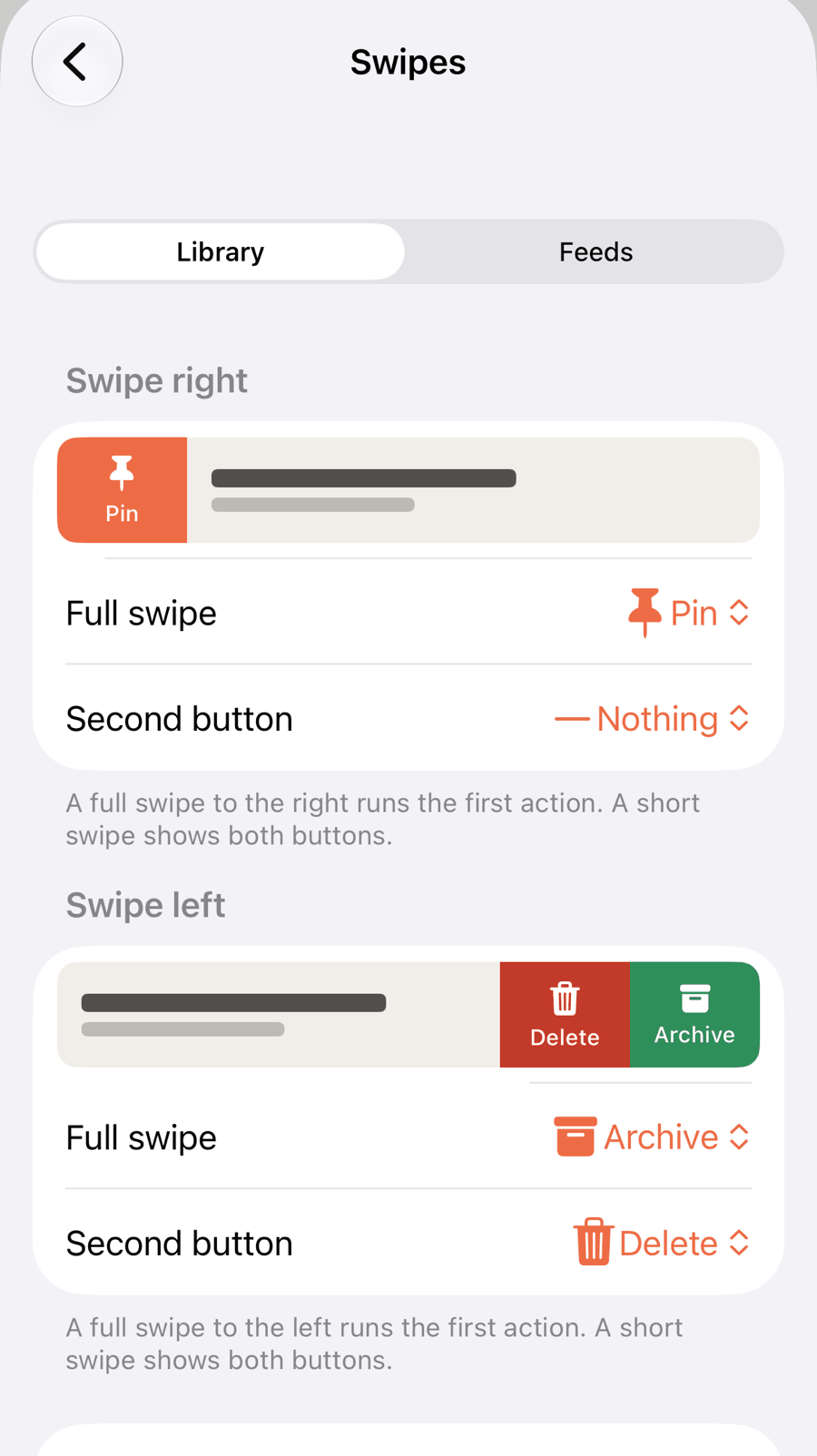
Swipe a row to the left or right for quick actions. By default, swiping right in the Library pins, and swiping left archives or deletes. A short swipe shows both buttons. A long swipe runs the first one.
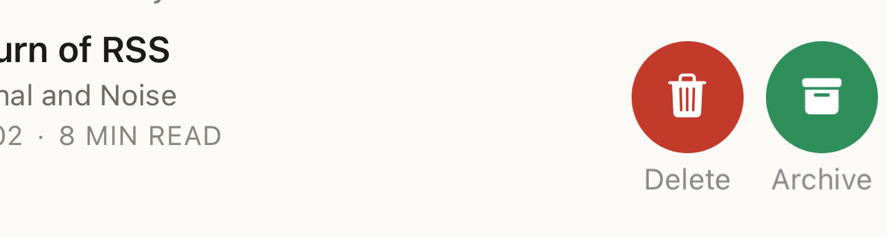
You can choose what each swipe does for the Library and for Feeds in Settings → Swipes.
Pick several at once
- Tap ☰, then Select. (Or press and hold an article and tap Select.)
- Tap the articles you want. Select All picks everything in the view.
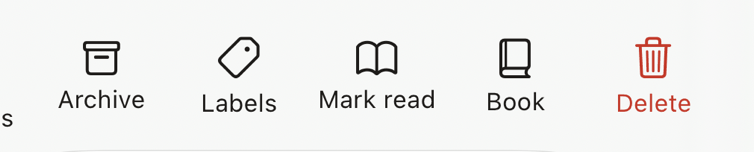
- Use the bar at the bottom: Archive, Labels, Mark read or Mark unread, Book (Pro), or Delete.
Tap Done when you’ve finished.