
Guide
Bringing your library over
Import your saved links, bookmarks and feeds from another app, a browser or a spreadsheet, and export your whole library.
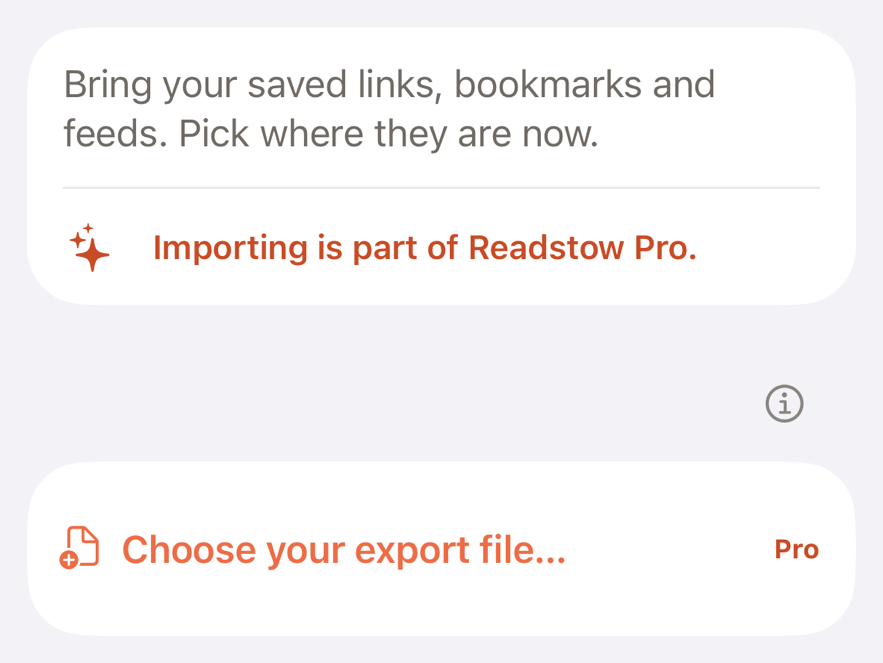
Importing is part of Pro. It brings in your saved links, bookmarks and feeds from the app or browser you used before.
Import a file
- Export your library from your previous app. Look for Export in its settings or on its website. Choose a CSV or OPML file where you’re given a choice.
- Save the file somewhere you can reach it from your device.
- In Readstow, go to Settings → Import from another app.
- Tap Choose your export file… and pick the file.
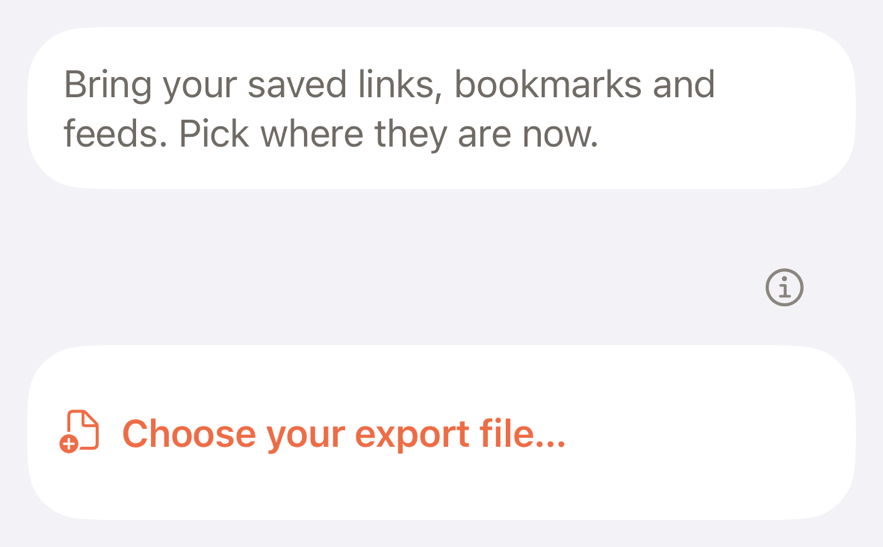
Readstow works out what kind of file it is and tells you what it found. These work:
- An export from your previous read it later app, as a CSV or ZIP file.
- An RSS reader’s export of your feeds, called an OPML file.
- Your browser’s bookmarks, as an HTML or ZIP file. The folders become labels.
- A Readstow export, the ZIP from Export my library below.
- A CSV or a list of links. Put one link on each row. If you like, add columns for the title, tags, and when it was saved.
To bring in bookmarks, export them from your browser to a file, then choose that file in Readstow.
The file can be up to 50 MB. Anything already in Readstow is skipped, so importing the same file twice is safe.
Moving from Pocket
If you kept the export file you downloaded from Pocket, Readstow reads it as it is.
- Save the file from Pocket, usually a ZIP, somewhere you can reach it from your device. You don’t need to open it.
- Go to Settings → Import from another app and choose the file.
Each article comes over with its title, link and the date you saved it. Your Pocket tags become labels, and articles you had archived go to your Archive. Readstow then downloads each article in full, so it reads offline. Highlights aren’t in Pocket’s export file, so they can’t come over.
While it imports
A progress screen shows how many items were Found, Imported and Already in Readstow. You can leave the screen, and the import carries on. Items fill in newest first. You can have up to five imports running at once. To stop one, tap Cancel import.
On the Free plan
The screen says "Importing is part of Readstow Pro" and the choose button is marked Pro. Tap it to see the plans.
If your plan changes after you’ve imported, everything you brought over stays readable.
Export your library
Your library is yours to take with you. Exporting is free on every plan.
- Go to Settings → Export my library.
- Tap Export. A bar shows how far it has got. You can leave the screen.
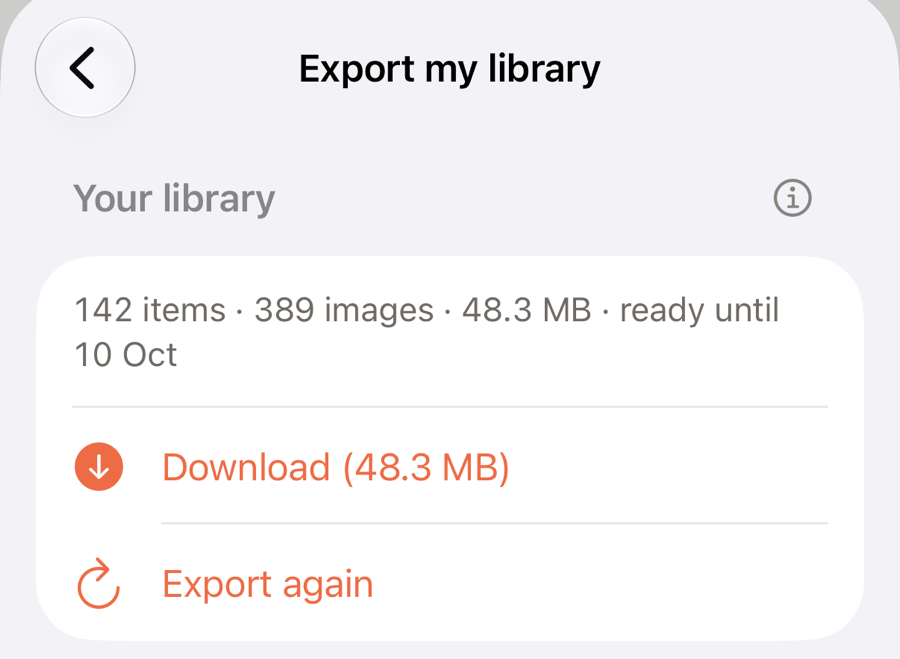
- When it’s ready, tap Download, then Save or share to keep the ZIP in your files, or send it to another device or by Mail.
The ZIP holds:
- every item as a web page with its images, and a Markdown copy
- your highlights and notes
- your labels and folders
- your feeds, as an OPML file
- your newsletters, rules and saved searches
Open index.html in any browser to read it, even with no connection. The line on the screen says how many items and images are in it, its size, and the date it’s ready until. Tap the ⓘ for the list above.
An export is kept for 7 days. A new export replaces the last one, and you can make up to 3 a day. Importing the ZIP back into Readstow is part of Pro, like any import.