
Guide
Saving
Save a page from your browser or any app, follow a feed, or paste a link into Readstow.
From your browser or another app
- In your browser, or any app with a Share button, tap Share.
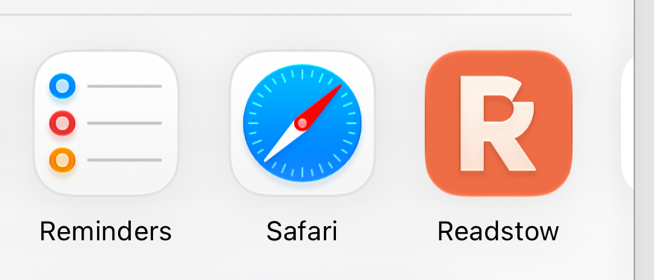
- Choose Readstow in the row of apps. If you don’t see it, scroll to the end of the row, tap More, and move Readstow up.
- A card opens. Readstow first works out whether the link is an article or a feed, then shows only what fits. Nothing is saved until you tap.
In Mail or Messages, press and hold a link, then tap Share.
An article
An article goes to your Library. The card lets you decide a few things first. All of them are optional.
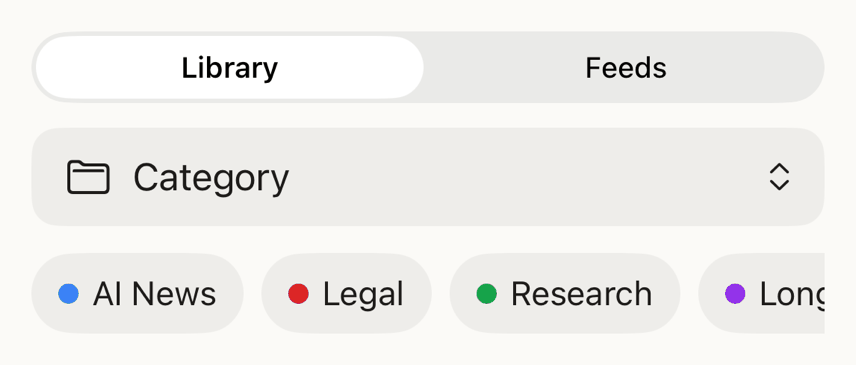
- Folder. Appears if you have made folders.
- Labels. Tap as many as you like. Tap again to take one off. To make a new one, tap New label… at the start of the row, type a name, then tap Add or Return. The label is made and put on this save.
Then tap one of these:
- Save keeps the article in your Library.
- Open now saves it and opens it in Readstow.
- Cancel closes the card and saves nothing.
A feed
An RSS or Atom feed, a site’s front page, a Reddit community, or a YouTube channel or playlist can only be followed. The card offers Follow (with a folder, and labels with Pro) and Cancel. Follow opens that feed in Feeds. If the feed can’t be followed, the card says why.
Other things the card can tell you
- It will download when you are back online. You were offline. Readstow keeps the link and fetches the article as soon as you’re connected.
- Sign in first. Open Readstow, sign in, then share again.
- Kept for later. You’ve used the Free plan’s room for saved articles. The link is kept and saved when you move to Pro.
Paste a link into the app
In Library or Feeds, tap +, then paste or type the link. If you’ve just copied a link, Readstow fills it in for you. Readstow works out whether it is an article or a feed. An article is saved to your Library: add a Folder (Pro) and Labels if you like (New label… makes one on the spot), then tap Save or Open now. A feed can only be followed, so the sheet offers Follow, or says why it can’t be.
Saving a link works even with no connection. Readstow sends it as soon as you’re back online.
Save from inside an article
Press and hold a link in an article to see what you can do with it: open it in Readstow, or save it for later. If the link is a feed, you’re offered Follow instead. Reading has the details. A plain tap opens the link in a browser inside the app, so you keep your place.
If a page can’t be saved
Some pages won’t download. Readstow says why in plain words, for example that the site blocked the download, or that the page couldn’t be found. You can then tap Open Original to read it on the web, or Try on this iPhone, which loads the page on your device and sends what it saw. If the page is behind a paywall on a site you pay for, see Sites you pay for. If a page keeps failing, email support@readstow.com with its link.