
Guide
Feeds
Follow sites, sort them into folders, manage and pause feeds, and see X posts.
The Feeds tab is for skimming. New articles from the feeds you follow arrive here by themselves, along with posts and the newsletters you’ve sent to Feeds.
Open the sidebar (tap the R) and look at the Feeds section. It has four views:
- All feeds shows everything.
- Posts shows X posts.
- RSS shows articles from the feeds you follow.
- Newsletters shows issues that arrive in Feeds.
If you like an article from Feeds, press and hold it and tap Keep in Library. It moves to your Library and stays there.
X posts
Posts from X appear as post cards. A repost shows a line above it, such as "↻ Alex reposted", then the original post. When a post quotes another, the quoted post shows as a card underneath. To see the post on X, press and hold it and choose Open original in X.
Add a feed
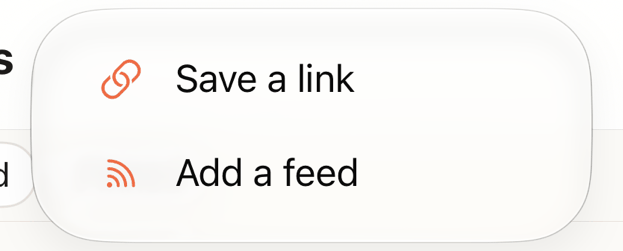
- Tap +. (You can also use the + in Settings → Manage feeds, or Add here on a folder.)
- Type or paste the address of a site, a page or a feed. Readstow checks it for a moment, then shows what you can do with it.
- Tap Follow. If the site has several feeds, each one has its own Follow.
You can also paste a link to a profile or channel on Reddit, YouTube, Apple Podcasts, SoundCloud, Mastodon, Bluesky, Micro.blog, Pixelfed or Flickr. Readstow finds its feed.
Pick a Folder for the feed on the same screen, before you follow. With Pro, also pick any Labels you’d like every new item to get. From a folder’s Add here, that folder is already chosen. After you follow, the feed opens and its posts load in.
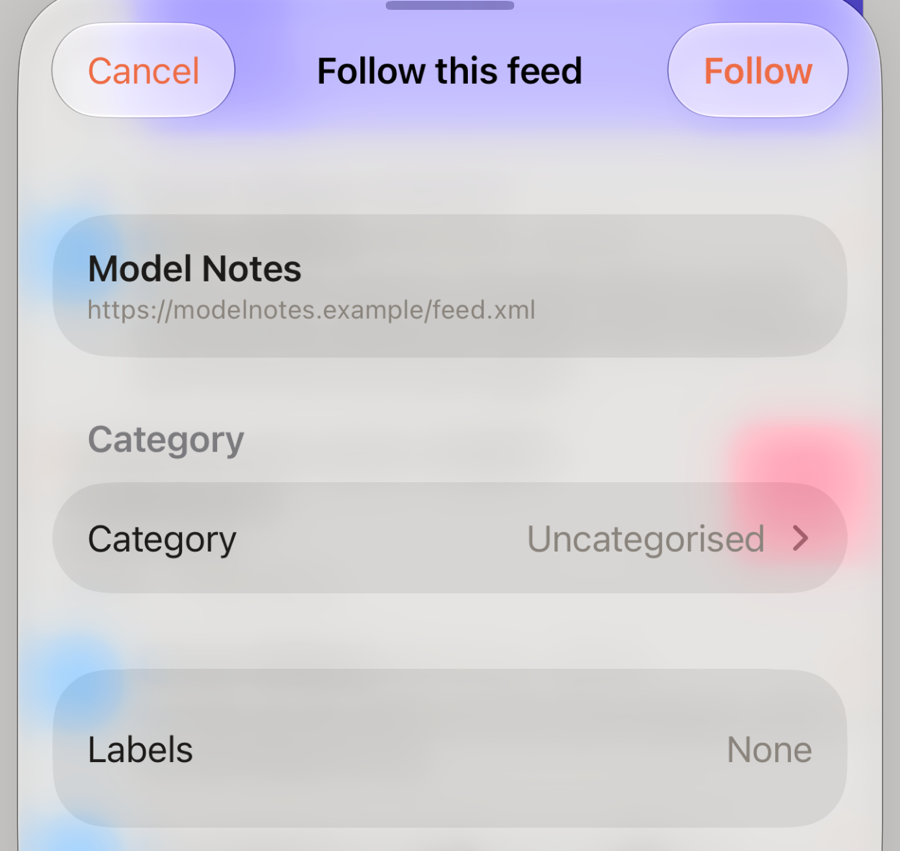
New items arrive in Feeds. The Free plan follows up to 3 feeds. Pro follows up to 250.
Folders
Folders group your feeds in the sidebar, with a count beside each. A folder can hold other folders. The Library section has folders of its own, for your saved articles.
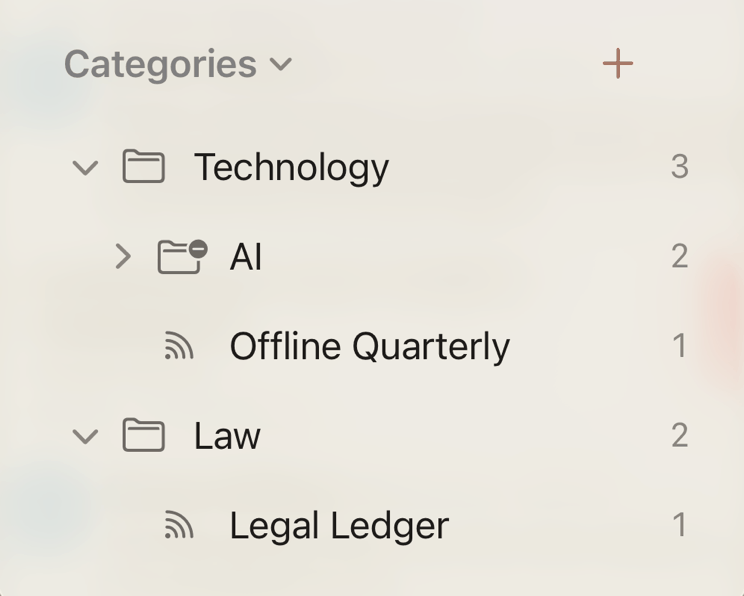
- Tap the folder button next to Feeds to make a new folder.
- Tap the arrow next to a folder to open or close it.
- Tap a folder or feed to see only its items.
Press and hold a folder for more:
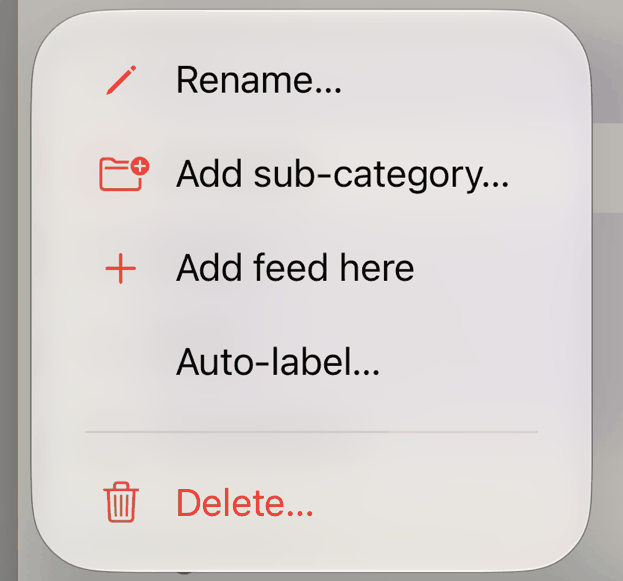
- Add here opens the add screen with this folder already chosen.
- New folder inside… and Rename… do what they say.
- Move to shifts a folder to the top level, or inside another.
- Auto-label… makes a rule for the folder. See Labels, folders, rules and Auto-archive / delete.
- Delete… asks first. What’s in the folder moves up a level, and nothing else is deleted.
Press and hold a feed for its menu:
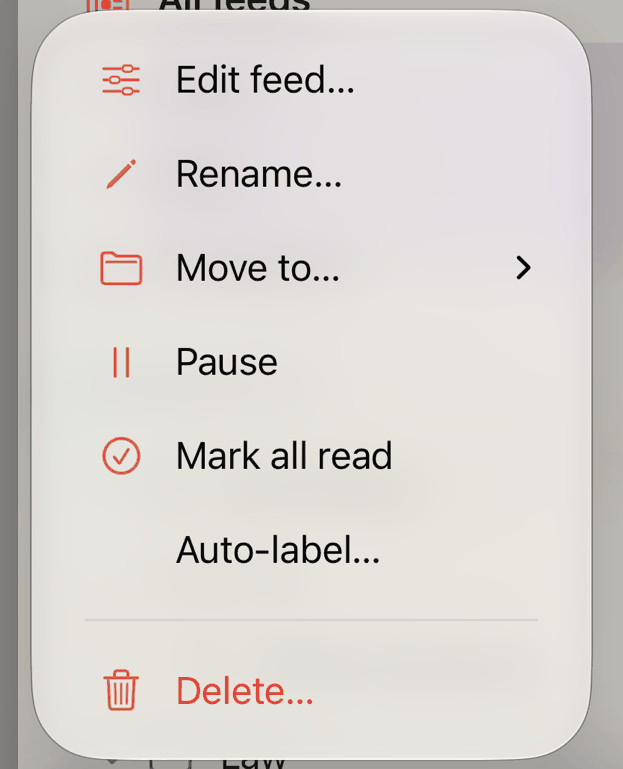
- Edit feed… opens all of the feed’s settings.
- Move to puts the feed in a folder, or in a new one. None takes it out of its folder.
- Pause stops checking the feed. Resume starts again.
- Mark all read marks everything in the feed read.
The Free plan has up to 3 folders, all together across Feeds and Library. Pro has no limit on the number of folders.
Manage feeds
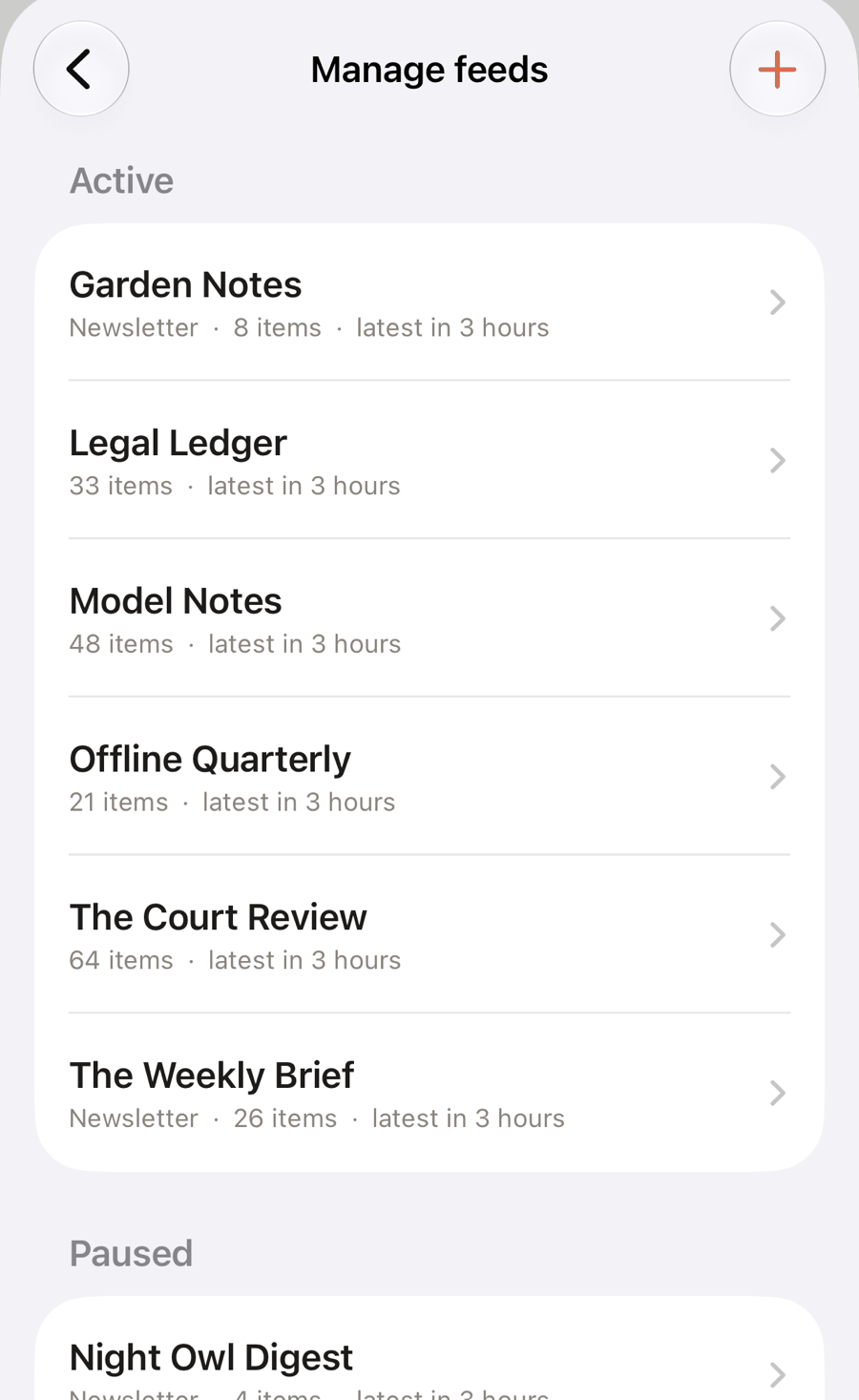
Settings → Manage feeds lists every feed and newsletter, with how many items each has and when the latest arrived. Paused ones are in their own section. A feed that has a problem says so. Manage feeds needs a connection.
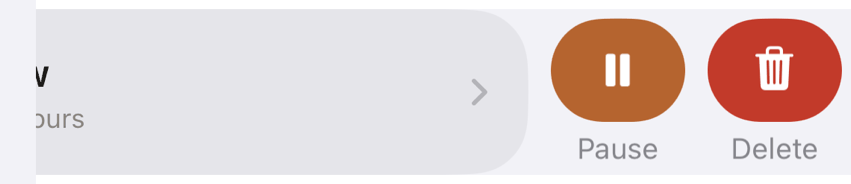
Swipe a row to the left to Pause or Delete it.
Tap a feed to change its settings.
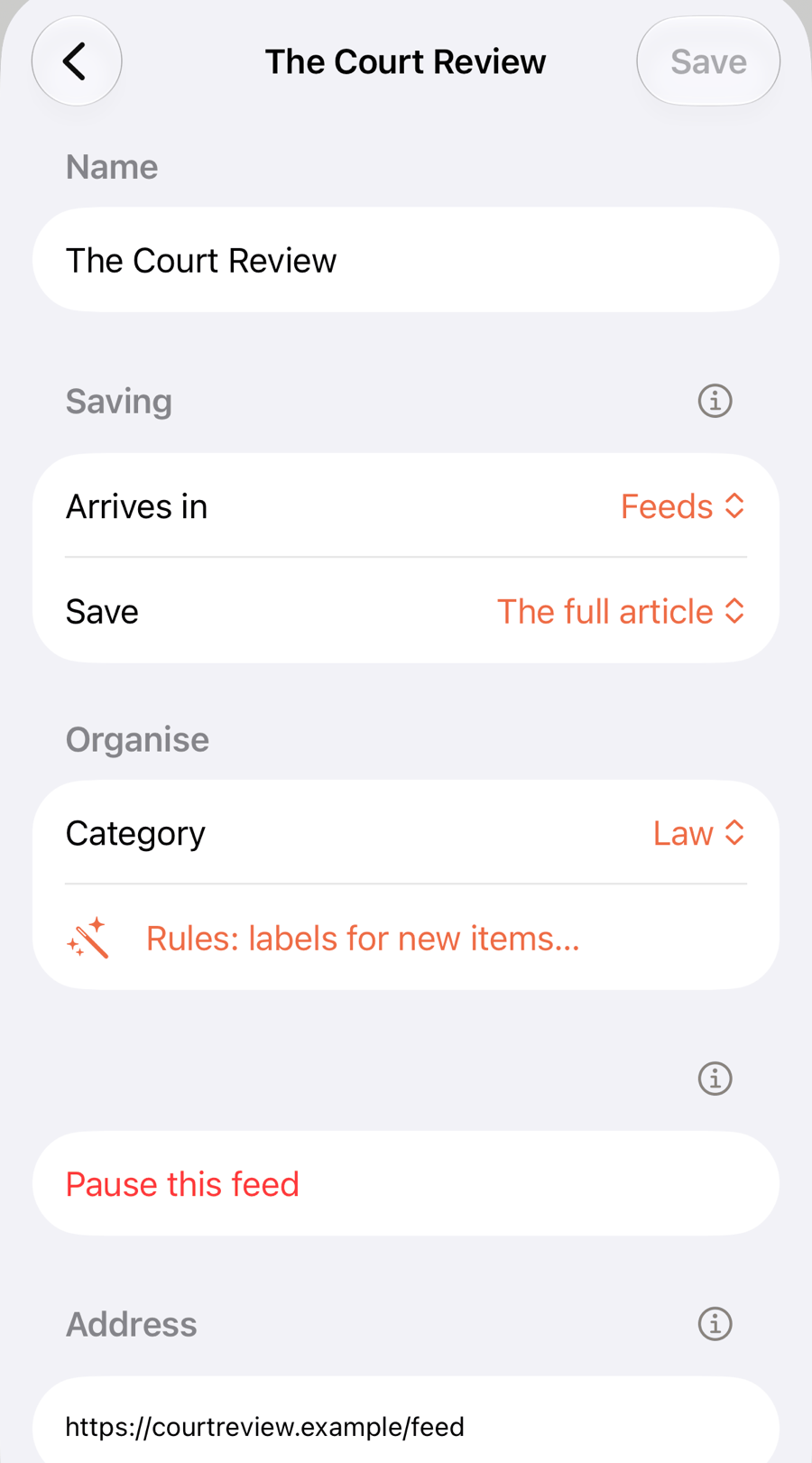
- Name. Rename it however you like.
- Arrives in. Feeds or Library.
- Save. The full article, Only the feed’s text, or Full article if the feed sends a summary. Some feeds send only the first lines. The last choice fetches the whole page in that case, and keeps the feed’s own text otherwise.
- Folder, and Rules (Pro).
- Pause this feed stops checks. Items you already have stay.
- Address. Fix a mistake, or a feed that moved.
- Delete this feed asks whether to keep its items or delete them too. Deleted items stay in Deleted for 30 days.
Tap Save at the top when you’ve changed the name, where it arrives, what to save, or the address. Folder, Pause and Delete take effect straight away.