
Guide
Getting started
Make an account, find your way around Readstow, and save your first article.
Readstow keeps the things you want to read in one place on your device. Save articles from anywhere, follow feeds, and have newsletters arrive as articles. Everything downloads in full, so it reads on a plane or on the train with no signal.
Make your account
- Open Readstow and tap Create an account.
- Enter your email address and a password.
- Readstow sends you a link. Open it to confirm your address, then come back to the app and tap I’ve confirmed.
If the email doesn’t arrive, look in your junk folder. The first time you open the app it also shows a few quick steps: some recommended settings, how to save from other apps, and a way to bring your old library over. You can skip any of them and find them later in Settings.
Find your way around
There are three tabs along the bottom.
- Feeds is for skimming: your feeds, posts and the newsletters you want to skim.
- Library is for what you mean to read: articles you saved, and anything you’ve kept.
- Profile is your account and plan, Settings, and sync.
At the top left of Feeds and Library you’ll see the Readstow R. Tap it to open the sidebar, and the R turns as it opens and closes. That’s where your views, folders, labels and saved searches live. The first time you open the app, a little note points it out.
The ☰ button at the top right opens a short menu of the things you use less often:
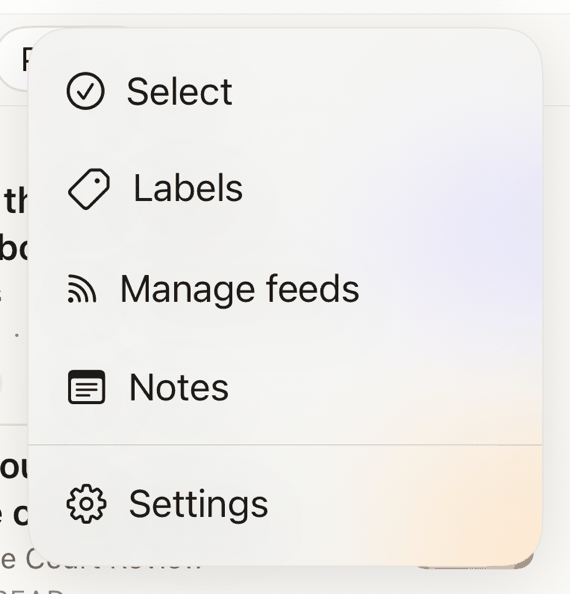
- Select lets you pick several articles at once.
- Labels manages your labels.
- Manage feeds lists every feed and newsletter you follow.
- Notes shows every note you’ve written.
- Settings has everything you set once.
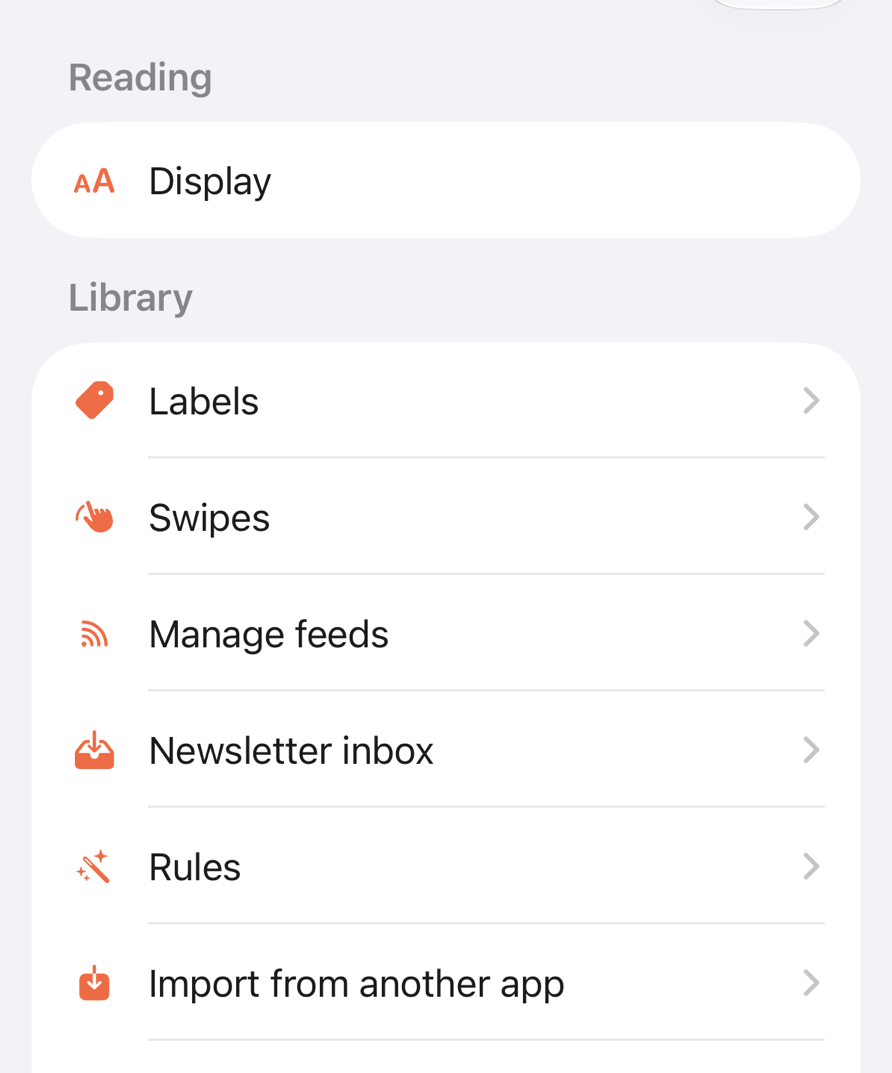
Further down are Export my library, Send to Kindle, Lists (Filter buttons and Sidebar counts), Data (Mobile data and storage) and General (Date and time).
Rules appear in Settings with Pro. Settings is also on Profile.
Small ⓘ buttons beside a heading open a short note about it. Tap one when you want to know more.
The other buttons along the top are search (the magnifying glass), sort (the up and down arrows) and +, which saves a link or follows a feed. Paste the address and Readstow offers what fits.
Save something
The quickest way is from your browser or any app that has a Share button. Tap Share, then choose Readstow. Saving shows how, and what the card that appears lets you choose.
Free and Pro
Readstow has a Free plan and Pro. Saving, reading offline, labels, highlights, notes, newsletters and export work on both. Pro adds higher limits (storage, feeds and folders), rules, Auto-archive / delete, advanced search, import and books for your Kindle. Account and plans has the details.